PostAnything, our AI social media manager, does that part for you. Paste your article's link and it writes a separate post for Facebook, Instagram, LinkedIn, Pinterest, X (formerly Twitter), Threads, Bluesky, TikTok and YouTube. Each one is shaped to that platform's length and style. Then it schedules them, so your posts go out while you get on with the next article. It's the quickest way we know to repurpose blog content without losing another afternoon.
One honest note first. Instagram and Pinterest need an image, and your article's featured image works fine, because PostAnything resizes it for each platform when it publishes. TikTok and YouTube need a video. We'll show you exactly how that plays out.
Most bread goes stale on the counter, not in the oven. 1Wrapped in plastic, the crust traps moisture and turns soft and chewy overnight.
We tested five ways to store a homemade loaf for a week. 2One small swap, a linen bag instead of plastic, made the biggest difference.
3Stored cut-side down, day-three sourdough can still taste like day one. Here's how each method did.
Your sourdough isn't going stale because of the recipe. It's the plastic bag.
We tested five ways to keep sourdough fresh, and one small swap (a linen bag instead of plastic) made the biggest difference.
Day-three sourdough can still taste like day one 🍞 Our 5 tips are on the blog now.
Real talk: your sourdough isn't going stale because of the recipe. It's how you store it.
5 Ways to Keep Sourdough Fresh for Longer 🍞 Simple storage tips that keep homemade bread soft for days.
Plus Facebook, Bluesky, TikTok and YouTube. All 9 go out together and count as 1 post.
Why most blog posts only get shared once
Every platform wants something different. X gives you 280 characters and counts every link as 23 of them. LinkedIn readers want the takeaway in the first line. Instagram doesn't make links in captions clickable, so you have to send people to your bio. Threads and Bluesky reward a chatty tone over a headline.
Writing nine versions of one article takes longer than most people have. So they paste the same headline and link everywhere, and it reads like an ad that people scroll straight past. The fix is still one version per platform. You just shouldn't be the one writing all of them.
A blog post to social media example: one article, nine platforms
This content repurposing example uses a made-up bakery blog, but the flow is exactly what you'll do in the app.
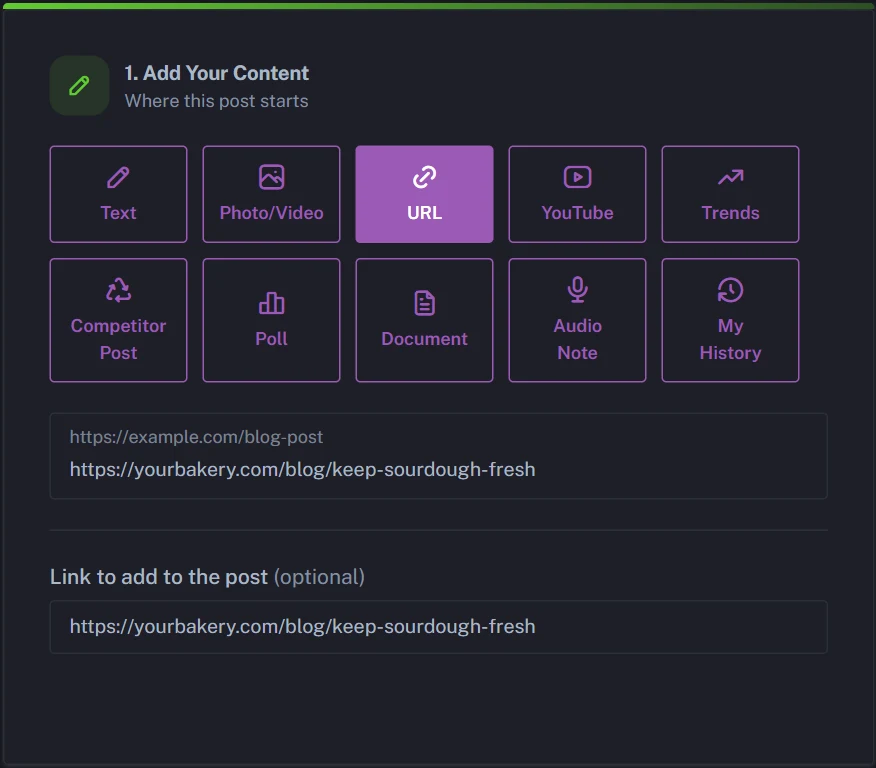
The source: an article called "5 Ways to Keep Sourdough Fresh for Longer" at yourbakery.com/blog/keep-sourdough-fresh. It goes into the URL tile.
The output: after clicking Generate, the loaf photo from the article is picked in the image carousel, and Step 2 shows a caption card for each platform. To bring in TikTok and YouTube, the photo was then swapped for a short video of the loaf being sliced. Here is what all nine platforms got.
Most bread goes stale on the counter, not in the oven. We tested five ways to keep sourdough fresh at home, and one small swap (a linen bag instead of plastic) made the biggest difference. Full guide below. #Baking #Sourdough yourbakery.com/blog/keep-sourdough-fresh
XYour sourdough isn't going stale because of the recipe. It's the plastic bag. 5 fixes that work 👇 yourbakery.com/blog/keep-sourdough-fresh
Ever cut into yesterday's loaf and found it rock hard? 😩 We've rounded up our five favourite ways to keep sourdough soft for days. Read them here: yourbakery.com/blog/keep-sourdough-fresh
Day-three sourdough can still taste like day one 🍞 Our 5 tips for keeping your loaf fresh are on the blog now. #Sourdough #HomeBaking #BreadLovers yourbakery.com/blog/keep-sourdough-fresh
ThreadsReal talk: your sourdough isn't going stale because of the recipe. It's how you store it. We tried five ways to keep a loaf fresh at home, and a linen bag beat everything else. How do you store yours? 🍞 yourbakery.com/blog/keep-sourdough-fresh
BlueskySourdough PSA: the plastic bag is the problem. We tested five ways to keep a loaf fresh for days, and switching to a linen bag made the biggest difference. The full rundown is on the blog: yourbakery.com/blog/keep-sourdough-fresh
5 Ways to Keep Sourdough Fresh for Longer 🍞 Stop throwing out stale bread. Simple storage tips that keep homemade sourdough soft for days, starting with a linen bag. #Sourdough #BreadStorage #BakingTips yourbakery.com/blog/keep-sourdough-fresh
TikTokPOV: you finally stopped storing your sourdough in a plastic bag 🍞 Watch how a loaf stays soft for days. All 5 tips are on our blog. #Sourdough #BreadTok #BakingTips yourbakery.com/blog/keep-sourdough-fresh
YouTubeHow to keep sourdough fresh for days 🍞 The plastic bag is the problem. We tested five ways to store a loaf at home, and this one worked best. #Sourdough #Baking #Shorts yourbakery.com/blog/keep-sourdough-fresh
Each caption opens differently, because each audience scrolls differently. PostAnything added the article link to the end of every caption, and made it the Pinterest pin's link too. The photo alone covered seven platforms. TikTok and YouTube only joined once it was swapped for the video, and Instagram and Pinterest kept their place because they take video too.
How to repurpose blog content for social media, step by step
Once your accounts are connected, a post needs just three steps from you, and PostAnything writes every caption in seconds.
The short version
- Paste your article's link into the URL tile. PostAnything adds it to your captions for you.
- Click Generate.
- Choose Post Now or a time, then click Schedule Post.
Everything else below is one-time setup or optional, and labelled that way.
Here's the full process, from a new account to a scheduled post.
1. Connect your social accounts One-time
- Open Connected Accounts from the sidebar.
- Sign in to each platform you use. Most connect in one click.
- If you post to Facebook, connect your Facebook Page. PostAnything posts to Pages, not personal profiles. If you connect more than one Page, pick the one to post to with Use this page.
- If you post to Bluesky, connect it with a Bluesky app password, not your real password. The Create an app password on Bluesky link takes you to the right place.
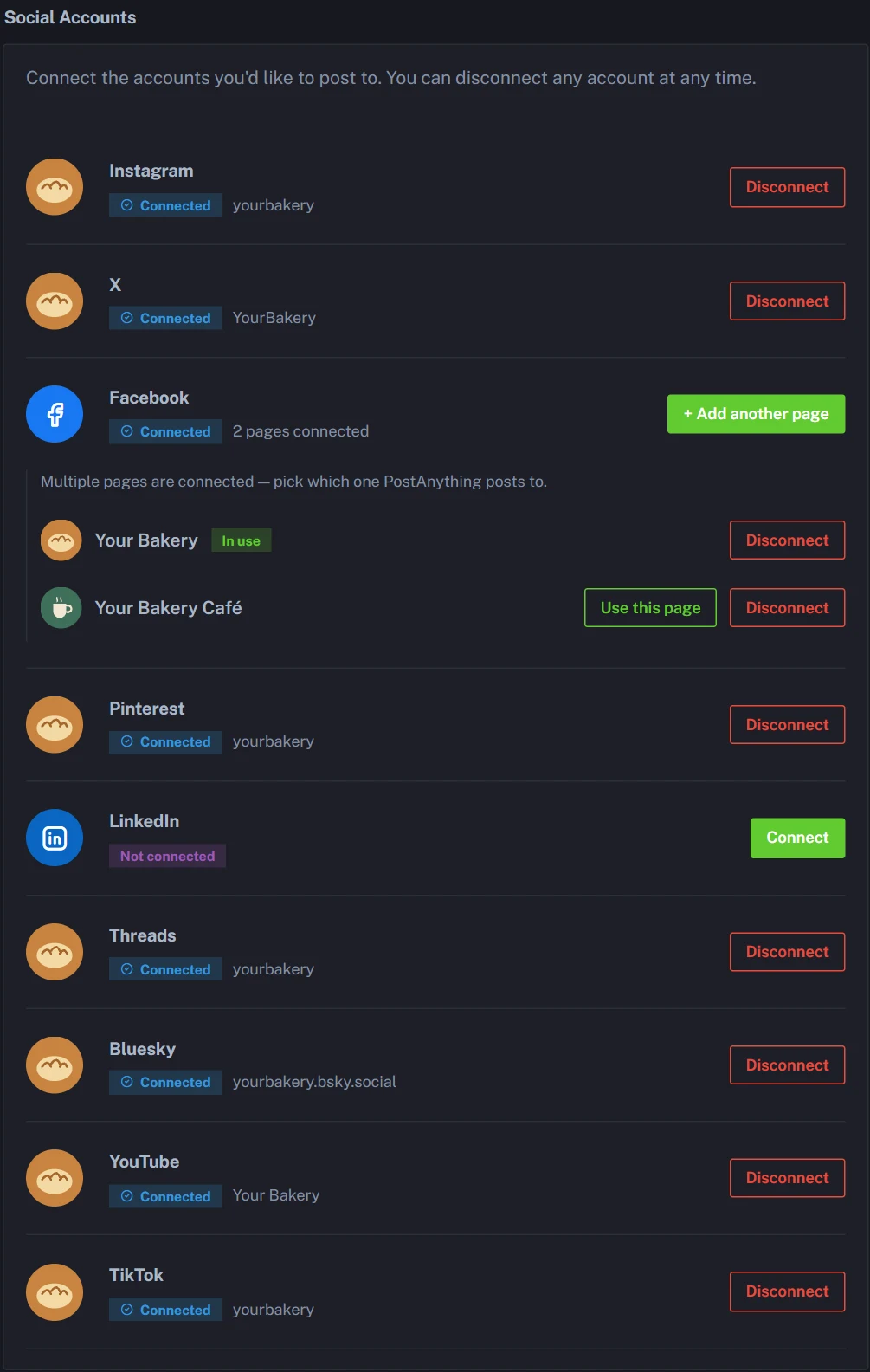
No accounts connected yet? You can still generate captions and preview all nine versions. You'll just need to connect before you schedule.
2. Teach PostAnything your voice Optional
- Open Voice & Style from the sidebar.
- Pick an account under Learn From Your Posts, paste examples into Custom Writing Samples, or do both.
- Click Analyze.
- Edit anything that's off under Your Learned Style.
- Click Save Changes.
From then on, every caption follows your style automatically.
3. Paste your article into the URL tile
- Open New Post from the sidebar.
- Choose the URL tile in Step 1: Add Your Content.
- Paste your article's link. PostAnything reads the page and summarises it, and copies the link into Link to add to the post so it goes at the end of your captions.
4. Set your preferences and click Generate
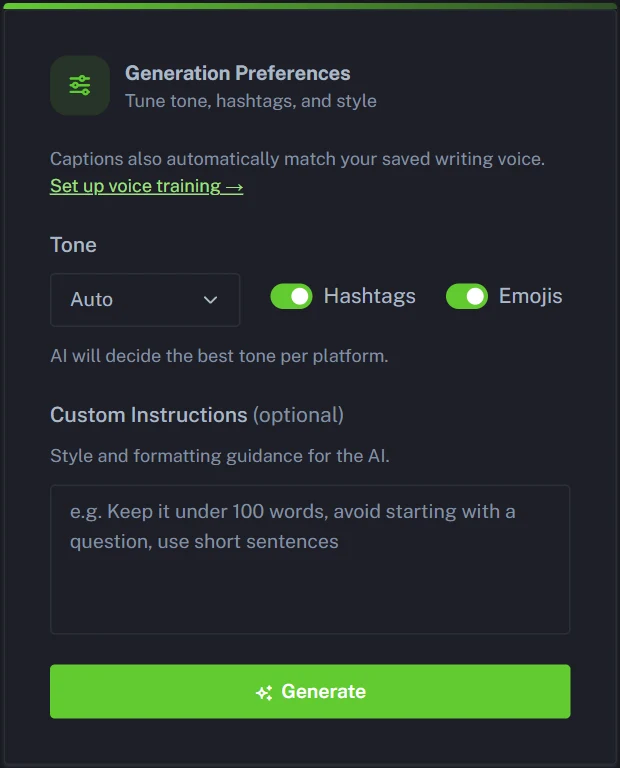
- Optional Pick a Tone, or leave it on Auto to let the AI choose the best tone for each platform.
- Optional Switch off Hashtags or Emojis if they don't suit your brand. Both are on by default, and even then PostAnything only adds them where they suit the platform. LinkedIn gets few hashtags, for example, while Instagram and TikTok get more.
- Optional Add Custom Instructions for house rules, such as "Always end with a question".
- Click Generate.
5. Choose your post's image or video Optional
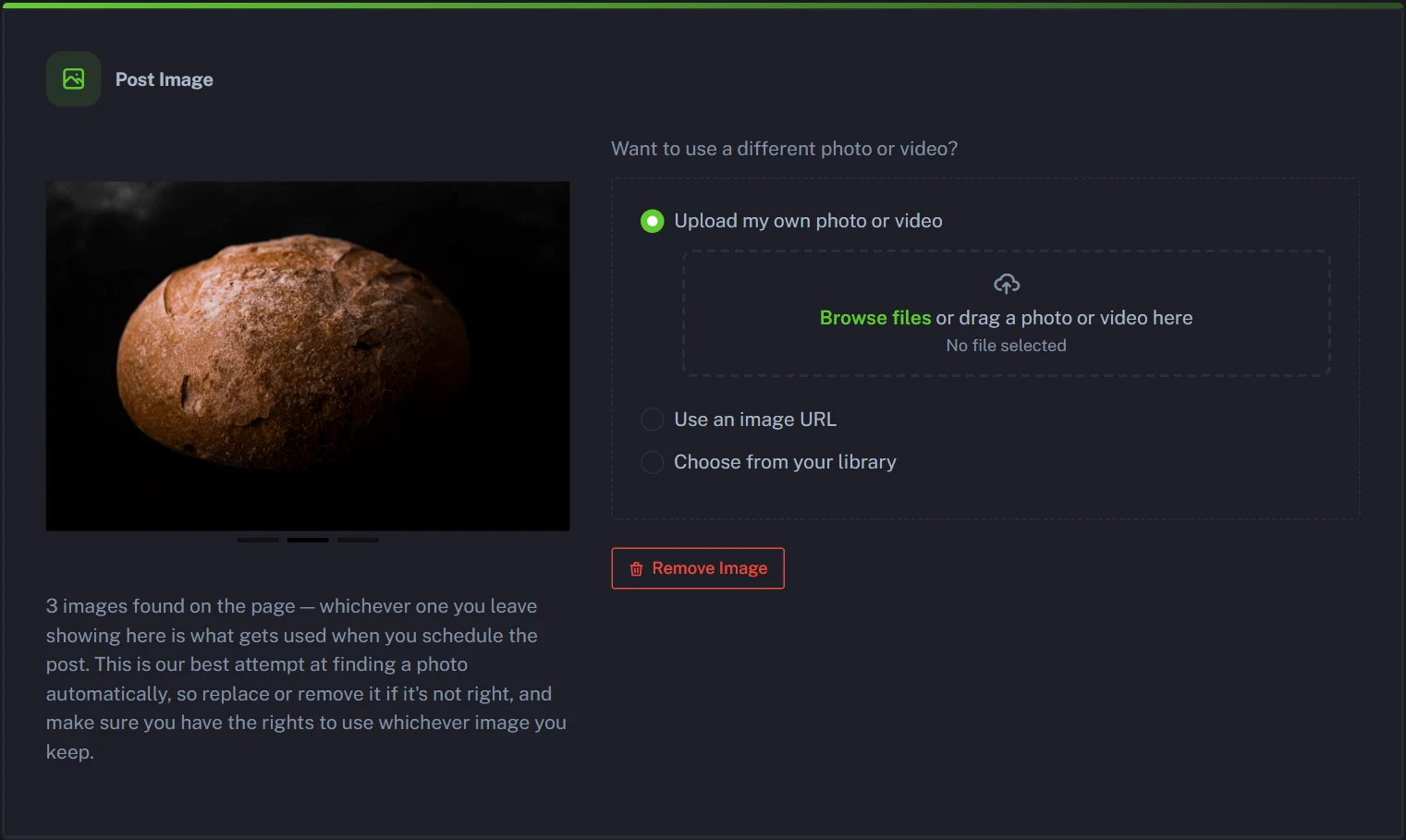
After you click Generate, a Post Image card appears above the captions with the image PostAnything found in your article. If it's the one you want, there's nothing to do. Otherwise, you decide what goes out with the post:
- Keep the detected image. If the article has several, scroll the carousel to the one you want. Whichever image is showing when you schedule is the one that gets used.
- Upload my own photo or video from your computer.
- Use an image URL to pull in a picture from another page.
- Choose from your library to reuse something from your media library. The library is on the Pro plan.
- Remove Image to post without one. Instagram and Pinterest are then left out, while Facebook, LinkedIn, X, Threads and Bluesky still get the post.
Want TikTok and YouTube included? Upload a video instead. A post carries one photo or video, so the video replaces the image, and Instagram and Pinterest stay in because they accept video too. Starting from a video anyway? Here's how to upload a video to multiple platforms at once.
If PostAnything didn't find an image, the card is called Add a Photo or Video and starts on No image, with the same choices: Upload a photo or video, Use an image URL and Choose from your library.
6. Review each caption
- Optional Read each caption card in Step 2: Review, and edit any wording directly.
- Optional Check the article link at the end of each caption, or move it somewhere else in the text. On Instagram and TikTok it shows as plain text, since links there can't be clicked, so point people to your bio too.
- Optional Click the refresh icon on a card to regenerate just that platform.
- Optional Use the switch on a card to leave a platform out of this post.
- Optional Click Preview to see how the post will look.
7. Schedule social media posts, or publish them all at once
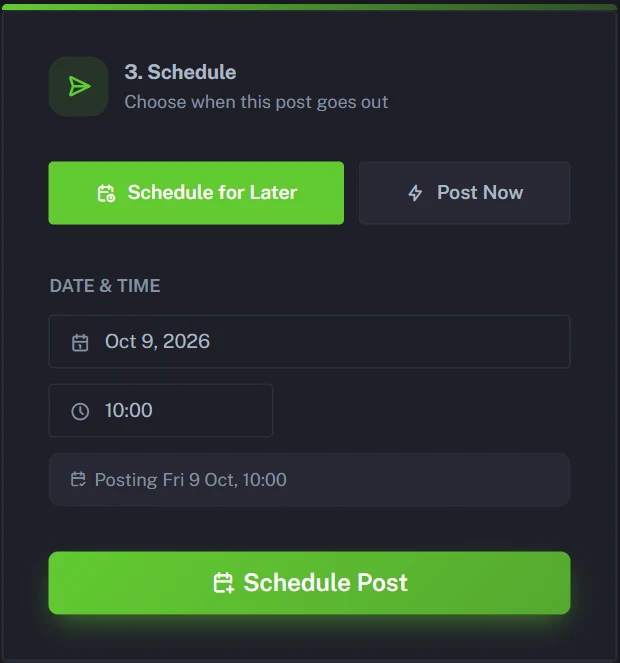
- Choose Schedule for Later in Step 3: Schedule and pick a date and time, or choose Post Now.
- Click Schedule Post.
- Optional Check Post History, where a new post shows "Processing" until each platform confirms it.
This is where you automatically post to social media. One click shares to all your connected accounts at once, and the whole thing counts as a single post against your plan.
Blog to social media post tips (and quick fixes)
Your article isn't published yet
Use the Document tile instead. Upload the draft as a PDF, DOCX, TXT or MD file (up to 10MB), and PostAnything pulls out the key points. Put the article's final link in Link to add to the post and it goes at the end of your captions. There's more on the Document tile in how to post a PDF on social media.
PostAnything can't read your page
Some sites block automated reading, for example with Cloudflare bot checks. If a URL won't fetch, upload the article as a Document or paste its key points into the Text tile. You'll get the same per-platform captions.
Instagram, Pinterest, TikTok and YouTube need media
Without the right media, PostAnything leaves those platforms out rather than posting something broken. An image covers Instagram and Pinterest, while TikTok and YouTube need a video. A post has one photo or video, so a video covers all four. Whatever you attach is resized and optimized for each platform when the post goes out, such as square for the Instagram feed and vertical for TikTok and Reels, while YouTube keeps your video's shape (a vertical clip becomes a Short, a landscape one a regular video). There's nothing to crop or export. If you add media after generating, captions for the newly eligible platforms are written automatically.
Getting more than one post from one article
One run gives you one post per platform. For a second angle a week later, paste a single tip from the article into the Text tile and link back to the full piece. On the Pro plan, My History lets you remix a post you've already published, reusing its media if it's still available. That's handy for evergreen articles.
A good rhythm is four or five posts per article over about six weeks. Post the full set on the day the article goes live. A week later, share a second angle built around one tip. Two to three weeks after that, share another tip or a strong line from the article. If the piece stays relevant, bring it back every two to three months. Give each follow-up a new opening line and, where you can, a different image, so people who saw the first post don't scroll past a repeat. At that pace, a weekly blog uses about 20 posts a month, which fits inside Basic's 30. Each of those posts goes to all your connected platforms and counts as just 1.
Auto-share plugin, ChatGPT or a content repurposing tool?
There are three common ways to get a blog post onto social media. Here's what each one leaves on your plate.
| Approach | What it does | What's left for you |
|---|---|---|
| Auto-share plugin | Typically sends your headline and link when you publish | The same text everywhere, with nothing written for each platform |
| ChatGPT | Writes a caption when you ask | Re-explaining your voice, reformatting for each platform, then logging in to post |
| PostAnything | Reads the article, writes a caption per platform in your voice, then schedules and publishes | Adding a video, if you want TikTok and YouTube |
An AI content repurposing tool only earns its keep if it removes the busywork between "article published" and "posts live". That's why PostAnything writes and schedules posts for all 9 platforms from one dashboard, instead of stopping at the caption.
Which PostAnything plan fits a blog-to-social workflow?
Start with the free trial. It gives you 5 posts in total (not per month) on 1 brand, with every feature included, no credit card and no time limit. Each post goes to all your connected platforms and counts as 1. That's enough to run your next few articles through and judge the results yourself.
For most bloggers, Basic is the right fit at $15 a month, or $12 a month billed annually. You get:
- 30 posts a monthEach post goes to all your platforms and counts as 1
- the URL and Document tiles
- all 9 platforms
- brand voice and custom instructions
- the content calendar and analytics
If you publish weekly, that leaves plenty of room for second angles.
Choose Pro at $29 a month if you also want to keep promoting older articles. It adds My History remixes, bulk scheduling, a media library and 300 posts a month, each one still going to all your platforms. You can compare every PostAnything plan and price side by side.
If you also make videos, you can turn a YouTube video into social media posts the same way.
Run an online store? You can also turn product pages into social media posts with the same steps.
Rather talk than type? You can also turn a voice memo into a social media post for every platform.
Turn your latest article into posts today
Your best articles deserve more than one share. Paste the link, check the captions, pick a time. Your post then goes out to every connected platform, written for each one.
Try it on the last article you published. New accounts get 5 free posts, each sent to all your connected platforms, with no credit card required.
Start Free Trial