PostAnything turns any YouTube video into social media posts for Facebook, Instagram, LinkedIn, Pinterest, X (formerly Twitter), Threads, Bluesky, TikTok and YouTube. Paste the link, and it reads the video's title, channel and transcript, writes a caption that fits each platform, and publishes on your schedule. It's the quickest way we know to promote YouTube videos on social media without writing the same announcement nine times.
Below, we'll show you how to repurpose YouTube videos properly: which platforms suit a link, which need an image, which need a clip, and exactly how to set it all up.
If your sourdough keeps coming out flat, this one's for you.
Dense crumb again? 😩 We made a whole video on the 5 mistakes…
Most sourdough problems start long before the oven.
5 Sourdough Mistakes Every Beginner Makes 🍞 Flat or dense loaves?
Flat, dense sourdough? It's almost always one of these 5 mistakes.
Honest question: is your sourdough flat, dense or gummy?
New video: the 5 sourdough mistakes nearly every beginner makes.
The sourdough mistake that ruins most beginner loaves 😩
Why is my sourdough flat? 🍞 The number one beginner mistake.
How to promote YouTube videos on social media (without pasting one link everywhere)
Sharing the bare link everywhere is the most common way people share a YouTube video, and it's a big reason so many uploads stall. Every platform treats that link differently.
Facebook, LinkedIn, X, Threads and Bluesky show a link preview, so a link post works there. Instagram is different: links in feed captions aren't clickable, and you can't post there without an image or video. Pinterest needs an image too. TikTok and YouTube need an actual video.
So a strong YouTube social media strategy isn't "share it everywhere." It's matching the format to each platform, then writing a caption that sounds native to it. A LinkedIn reader wants the key takeaway. Someone scrolling X wants one sharp line. Doing that by hand for nine platforms eats an evening. PostAnything does it in seconds.
Three ways to share a YouTube video, and where each one reaches
When you create a post from the YouTube tile, you decide what goes out with the caption. That choice decides which platforms the post can reach.
| What you attach | What gets posted | Platforms it reaches |
|---|---|---|
| Just the video link | Caption plus the YouTube link preview | Facebook, LinkedIn, X, Threads, Bluesky |
| The thumbnail or your own image (recommended) | Caption plus an image | Adds Instagram and Pinterest: 7 platforms |
| Your own short clip | Caption plus a video you upload | All 9, including TikTok and YouTube |
A link post: Facebook, LinkedIn, X, Threads and Bluesky
Attach nothing else, and the video link PostAnything adds to the end of your captions does the work: Facebook, LinkedIn, X, Threads and Bluesky show it as a preview with the video's thumbnail. Instagram, Pinterest, TikTok and YouTube need a photo or video, so they're left out of this post. It's fine if you only care about the text-and-link platforms.
The thumbnail or your own image: adds Instagram and Pinterest
This is the option we recommend for most launches. Choose Use the video's thumbnail, or upload an image of your own, and your post can reach seven platforms instead of five. The video link still goes at the end of every caption, and your Pinterest pin links straight to the video. Instagram doesn't make caption links clickable, so point people to the link in your bio too.
A short clip: all 9 platforms, including TikTok and YouTube Shorts
Cut a short vertical clip from your video in your usual editor, then attach it with Upload a photo or video. With a video attached, the post can reach all 9 platforms. PostAnything resizes the clip for each platform automatically, so there's nothing to crop or export, and it goes to Instagram and your Facebook Page as a Reel. Here's more on how to post one video to TikTok, Reels and Shorts at once.
Many creators use both: a thumbnail post on launch day, then a clip post a few days later. That's two posts, and each one goes out to every platform you've connected.
How to go from YouTube video to social media posts in PostAnything
Once your accounts are connected, a video post needs just three steps from you, and PostAnything writes every caption in seconds.
The short version
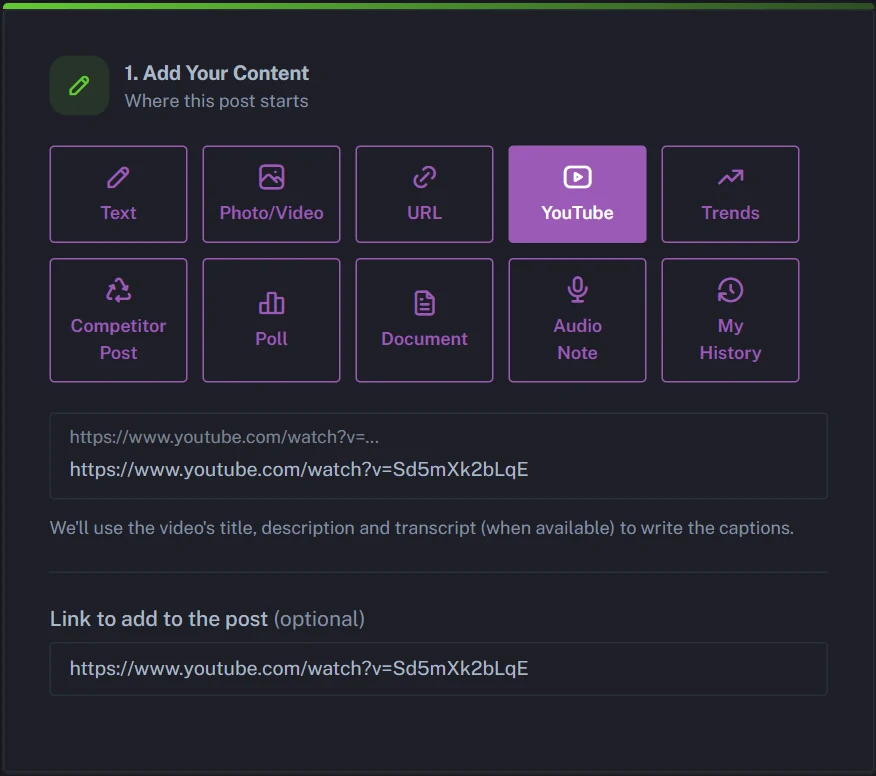
- Paste your video's link into the YouTube tile. It's copied into Link to add to the post for you.
- Click Generate.
- Choose Post Now or a time, then click Schedule Post.
That's a link post to Facebook, LinkedIn, X, Threads and Bluesky, with the video link already in every caption. To reach Instagram and Pinterest too, pick Use the video's thumbnail after you click Generate. Everything else below is one-time setup or optional, and labelled that way.
Here's the full process, from signing up to your posts going live.
- One-time Sign up by clicking Start Free Trial on postanything.ai. You get 5 free posts, each one publishing to all the platforms you connect, with no credit card and no time limit.
- One-time Connect your platforms under Connected Accounts in the sidebar. Most connect in one click. Facebook posts go to Pages rather than personal profiles, and Bluesky uses an app password (there's a Create an app password on Bluesky link to help).
- Optional Train your voice under Voice & Style. Use Learn From Your Posts, Custom Writing Samples or both, click Analyze, check the result under Your Learned Style, and click Save Changes.
- Open New Post and choose the YouTube tile in Step 1.
- Paste your video's URL. PostAnything reads the title, channel and transcript. Auto-generated captions work fine, and if a video has no captions at all, it works from the title, channel and description. The link is also copied into Link to add to the post, so PostAnything adds it to the end of your captions. Clear that field to leave the link out, or swap in another one, like your website.
- Optional Set your Generation Preferences. Pick a Tone or leave it on Auto, switch Hashtags and Emojis on or off, and add any Custom Instructions, such as "Always end with a question."
- Click Generate.
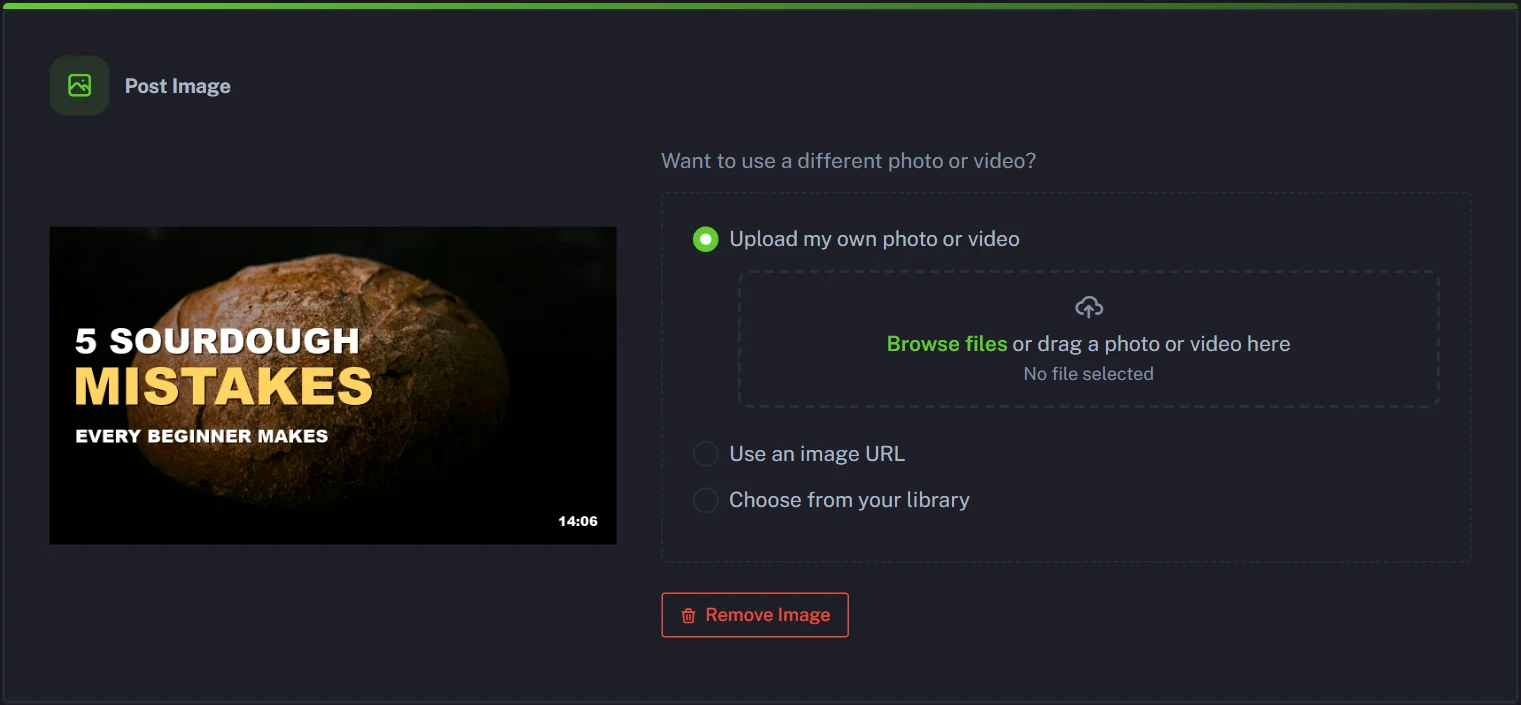
- Optional Choose your media in the Add a Photo or Video card. Pick Use the video's thumbnail, or Upload a photo or video for your own image or clip. Captions for newly eligible platforms, like Instagram or TikTok, are written automatically. Skip this and the post goes out as a link post.
- Review your captions in Step 2. Edit anything you like, use the refresh icon to rewrite a single platform, or switch a platform off for this post.
- Schedule it in Step 3. Choose Schedule for Later or Post Now, then click Schedule Post.
Your post appears in Post History and on the Calendar. It shows "Processing" until each platform confirms it, which can take a few minutes.
Before and after: one YouTube video, nine platform posts
Here's what that looks like with an example video: a 14-minute tutorial called "5 Sourdough Mistakes Every Beginner Makes." The link goes into the YouTube tile, and a short vertical clip from the video is attached in the Add a Photo or Video card, so the post can reach all nine platforms. PostAnything added the video link to the end of the captions.
Most sourdough problems start long before the oven. In our new video, we walk through the five mistakes beginners make most often, from underproofed dough to a starter that isn't ready yet. The fix for number three takes about 30 seconds. Watch it here: [your link]
XFlat, dense sourdough? It's almost always one of these 5 mistakes. New video 👇 [your link]
Dense crumb again? 😩 We made a whole video on the 5 mistakes that ruin beginner loaves (number 3 is the sneaky one). Full tutorial on our YouTube 🍞 #sourdough #homebaker #breadbaking [your link]
If your sourdough keeps coming out flat, this one's for you. Our new video covers the 5 mistakes nearly every beginner makes, and how to fix each one before your next bake. Which one caught you out? Tell us in the comments 👇 [your link]
ThreadsHonest question: is your sourdough flat, dense or gummy in the middle? 🍞 We just put out a video on the 5 mistakes behind almost every disappointing loaf. Which one gets you? [your link]
BlueskyNew video: the 5 sourdough mistakes nearly every beginner makes, and how to fix each one before your next bake. Number 3 surprised us too. #sourdough [your link]
5 Sourdough Mistakes Every Beginner Makes 🍞 Flat or dense loaves? Learn how to spot underproofed dough, tell when your starter is ready, and fix the other common beginner mistakes. Full video tutorial on our YouTube channel. #sourdough #breadbaking #bakingtips [your link]
TikTokThe sourdough mistake that ruins most beginner loaves 😩 Is your starter actually ready? Full tutorial with all 5 mistakes on our YouTube 🍞 #sourdough #breadtok #bakingtips #homebaker [your link]
YouTubeWhy is my sourdough flat? 🍞 The number one beginner mistake, explained in under a minute. Watch the full 14-minute tutorial on our channel for all 5 mistakes and how to fix each one. #sourdough #baking #Shorts [your link]
Same video, nine very different posts. Your real captions follow your own voice and whatever your video actually covers.
How to share a YouTube video on each platform
Each platform rewards something slightly different. Here's what PostAnything writes for each one, and what's left for you.
How to share a YouTube video on Facebook
Can you post YouTube videos on Facebook? Yes. A link post shows a preview on your Page, and PostAnything writes a longer, friendlier caption that fits how people read there. Want every post to end with a question that gets followers commenting? Add that to your Custom Instructions.
How to share a YouTube video on Instagram
Instagram needs the thumbnail or a clip, and PostAnything writes a casual caption with hashtags to go with it. Feed captions aren't clickable, so point people to the link in your bio. For a tappable link, you can also add a link sticker to an Instagram Story in the Instagram app. If you're working out how to repurpose YouTube videos for Instagram, a short clip gives people something to watch without leaving the app.
YouTube video to LinkedIn post
LinkedIn posts work best when the value is in the post itself, not just behind the link. PostAnything pulls the key point from your transcript and leads with it, so readers learn something before they click. If you've been searching for a LinkedIn post generator for YouTube videos, this does the job, with eight other platforms included.
How to post a YouTube video on X (formerly Twitter)
PostAnything keeps the X caption short and punchy: one strong hook, with room left for your link. Want to send people to the best part? YouTube's Share menu has a Start at option that links straight to a specific moment in the video, so put that link in Link to add to the post instead.
Can you post YouTube videos on Threads and Bluesky?
Yes, on both. Either one takes a link post or a thumbnail post, and PostAnything keeps the tone more conversational than on LinkedIn or Facebook. Bluesky connects with an app password instead of one-click sign-in.
Using Pinterest to promote YouTube videos
Pinterest needs an image or a video, so the thumbnail or your clip becomes the pin. People use Pinterest to search for ideas, and PostAnything writes the pin description to match: keyword-rich and descriptive, so the pin keeps getting found after launch week.
Every pin also links to your YouTube video, so anyone who taps it lands straight on the full video.
Repurpose YouTube videos for TikTok
TikTok only takes video, so this is where a short clip earns its keep. Unlike AI video repurposing tools that cut clips for you, PostAnything doesn't edit video. Bring a clip you've trimmed yourself, and it handles the caption, the resizing and the publishing. That split works well for video content repurposing: your editor does the cutting, and PostAnything handles repurposing videos into posts for every platform.
Which plan fits a YouTube promotion routine?
The YouTube tile is included on every plan. For most solo creators, Basic at $15 a month is plenty: you get 30 posts a month, and each one goes out to every platform you've connected. Two posts per weekly video uses about eight of them.
Pro at $29 a month suits you if you want to promote your back catalogue too. You get 300 posts a month (each still counts once, however many platforms it reaches), Bulk Schedule to queue a month of posts in one sitting, My History to remix posts that did well, and a media library for reusing clips. The free trial includes these Pro features, so you can try them before choosing. Compare PostAnything plans and pricing, or see how the AI social media scheduler handles every other kind of source.
If you also write articles, you can turn your blog posts into social media posts the same way.
Selling products too? Our AI product post generator does the same for your product pages.
Ideas often strike away from the camera? Record a quick one and turn your voice memo into social media posts the same way.
Your next upload deserves more than one link
Here's the short version. A link post reaches five platforms. Add the thumbnail and you reach seven. Add a short clip and you reach all 9. Whichever you choose, PostAnything writes each caption from your video and publishes it for you.
Start with 5 free posts, each one publishing to all your connected platforms. No credit card needed.
Start Free Trial