This guide covers all nine major platforms: Facebook, Instagram, LinkedIn, Pinterest, X (formerly Twitter), Threads, Bluesky, TikTok and YouTube. You'll get a straight answer to "can you upload a PDF to Facebook?", clear steps for how to post a PDF on LinkedIn and how to post a PDF on Instagram, and the workarounds that hold up everywhere else. Then we'll show you what we think works better: turning the PDF into native posts that people read without clicking anything. The same works for Word documents, text files and Markdown.
LinkedIn Facebook Groups only The other seven
The small businesses we work with that grow fastest aren't doing anything fancy. They do the basics, every week. Three takeaways from our free guide…
Want more customers this year without a bigger budget? 📈 We've made a free guide with the simple habits we see working again and again.
Check your numbers monthly. Follow up on quotes within 2 days. Ask happy customers for reviews. 3 tips from our free guide 📈
Small habits, big difference 📈 Our free Small Business Growth Guide has 8 pages of practical tips you can start using this week.
Plus Pinterest, Threads, Bluesky, TikTok and YouTube, read right in the feed. All of it counts as 1 post.
Works the same from a Word document, a text file or Markdown.
Can you post a PDF on social media? The quick answer for each platform
| Platform | Native PDF upload? | What works instead |
|---|---|---|
| Only in Groups | Share a link to the hosted PDF, or post the pages as images | |
| Yes, as a document post | Upload it directly (PDF, DOC, DOCX, PPT or PPTX) | |
| No | Turn the pages into images and post a carousel | |
| X (formerly Twitter) | No | Share a link, or attach up to four page images |
| Threads | No | Share a link or page images |
| Bluesky | No | Share a link or page images |
| No | Pin a page image that links to the PDF | |
| TikTok | No | Make a short video about what's in the PDF |
| YouTube | No | Make a video and put the PDF link in the description |
So there's no upload button that works everywhere. LinkedIn is the only platform that treats a PDF as a proper post format. Everywhere else, you either send people off the platform with a link or rebuild the content as images or video.
PostAnything works on all nine, including the seven that won't take the file. It reads your PDF and writes a native post for each platform, so the content shows up in the feed instead of behind a link. Here's how it works.
How to post a PDF to Facebook
Can you upload a PDF to Facebook?
Yes, but only inside a Facebook Group. You can't attach a PDF to a post on your personal profile or on a Facebook Page. Groups are the exception because they have a Files section, and Meta's own guide explains how to upload or remove a file in a Facebook group. Who can view, upload and download files depends on the group's privacy settings, so if you don't see the option, that's usually why. You can also send a PDF in a Messenger chat, but that's a private message, not a post.
How to add a PDF to a Facebook Group post
- From your Feed, click Groups in the left menu and select your group.
- Click Write something….
- Click Options, then select Add file.
- Click Choose file and select your PDF.
- Add a sentence or two about what's inside.
- Click Post.
The file also appears in the group's Files section, where members can find it later. If you don't see Files, click More and select Files.
How to add a PDF to a Facebook post on your profile or Page
Since Facebook won't attach the file, you have two workarounds:
- Share a link. Upload the PDF to your website, Google Drive or Dropbox, make sure anyone with the link can view it, and paste the link into your post. Facebook shows a link preview.
- Post it as images. Export each page as a JPG or PNG (most PDF readers can do this) and upload them as a photo post. This suits short files like flyers, menus and one-page price lists.
Both work, but each has a catch. A link takes people off Facebook, and a page of dense text shrunk into a photo is hard to read on a phone.
The PostAnything alternative: upload the PDF once and PostAnything writes a post for your Facebook Page from what's inside, so people read the key points right in their feed. Add the link to the full PDF if you like, and the same upload covers your other platforms too. See the steps.
How to post a PDF on LinkedIn
How to upload a PDF to LinkedIn as a document post
LinkedIn is the one network built for this. A LinkedIn document post shows your file as a set of pages people can swipe through right in the feed. According to LinkedIn's guide to sharing documents in posts, files can be up to 100MB and 300 pages, in PDF, PPT, PPTX, DOC or DOCX format.
- Click Start a post at the top of your LinkedIn homepage.
- Click More, then the Add a document icon.
- Click Choose file and select your PDF.
- Add a title for the document and click Done.
- Write the post's description.
- Click Post.
On mobile, tap the More icon, then Document, and follow the same steps. One thing to know before you post: you can edit the description later, but not the document. If you spot a typo on page 7, you'll have to delete the post and upload the file again.
When a LinkedIn document post is worth it
Document posts suit content people want to flick through or save, like a short slide deck, a checklist or a how-to guide. A 40-page annual report is a different story, because few people will swipe that far. For long documents, a text post that pulls out the two or three findings that matter, with a link to the full PDF, is often the better choice.
We've tried both with our own guides. A document post gets a good first look, and it's the right format for something people save, like a checklist. But most readers swipe a few pages and move on, so for anything longer, a text post that names the findings in its first two lines starts more conversations. What works for us: the text post first, then the document post a few days later for the people who want the whole thing.
How to post a PDF on Instagram
Can you upload a PDF to Instagram?
No. Instagram only accepts photos and videos, so a PDF has to become images first.
- Export each page of the PDF as a JPG or PNG.
- Open Instagram, tap the + button and choose Post.
- Select your page images. A carousel holds up to 20.
- Write your caption and tap Share.
Every image in a carousel is shown in the same shape, so tall document pages can get trimmed at the edges. Simple, bold pages survive best. And because links in Instagram captions aren't clickable, put the link to the full PDF in your bio.
The PostAnything alternative: skip exporting the pages. PostAnything reads the PDF and writes your Instagram caption from its key points. Attach one photo or video and it's resized for the Instagram feed when it publishes. See the steps.
How to share a PDF on Twitter (X), Threads, Bluesky, Pinterest, TikTok and YouTube
None of these six accept PDF files. Here's what works on each.
- X (formerly Twitter): paste a link to the hosted PDF, or attach up to four page images. If you want to share a PDF on Twitter without sending people away, a short thread of the key points with the link at the end works well.
- Threads and Bluesky: the same options apply. Both platforms are conversational, so a plain-text summary that ends with a question usually fits better than a screenshot of a page.
- Pinterest: make a Pin from a page image or a designed cover, and set its destination link to your PDF. This works nicely for printables, checklists and guides.
- TikTok and YouTube: both need video. Talk through the PDF's main points on camera or turn the pages into a short slideshow, then point viewers to the full document. YouTube lets you put the link in the description. Once that video is on YouTube, here's how to turn a YouTube video into social media posts for your other platforms.
The PostAnything alternative: one upload covers all six. PostAnything writes a separate post for each from your PDF, short for X and conversational for Threads and Bluesky. Those three can go out as text, and one video brings in Pinterest, TikTok and YouTube as well. See the steps.
Why posting the PDF itself often falls flat
Look at what all these workarounds have in common. Either the reader has to click, download or swipe before they get to the good part, or the content gets squeezed into a format it was never designed for. A link card or a shrunken page gives someone scrolling past very little reason to stop.
Yet the value in most PDFs comes down to a handful of points: a finding, a tip, an offer, a date. Pull those out and write them as proper posts for each platform, and people get the message whether or not they ever open the file. Anyone who wants the whole thing can still follow your link.
A better way to handle PDF social media posts: AI content repurposing
That's exactly what we built PostAnything to do. PostAnything is an AI social media manager that reads your document, pulls out the key points and writes a separate post for each of the 9 platforms, in your brand voice. Then it publishes them for you. You review the posts, pick a time, and PostAnything handles the rest, so there's nothing to copy and paste into nine different apps.
To be clear about what it doesn't do:
- It doesn't upload the PDF file itself. If you want LinkedIn's swipeable document format, upload the file there directly, and switch LinkedIn off for that post in PostAnything.
- It doesn't turn your PDF's pages into images, and it doesn't generate AI images.
- Some platforms need media. A text-only post goes to Facebook, LinkedIn, X, Threads and Bluesky. Instagram and Pinterest need a photo or video, and TikTok and YouTube need a video. You add these right after generating, and PostAnything resizes them to suit each platform when it publishes: square for the Instagram feed and vertical for TikTok, while YouTube keeps your video's shape, so a vertical clip becomes a Short and a landscape one a regular video.
Already published the content as an article? It's quicker to turn a blog post into social media posts straight from its link. And if your PDF is a product catalogue whose products already have pages on your site, our AI product post generator works from the product link and pulls in the photos too.
Word documents, text files and Markdown work too
The Document tile isn't only for PDFs. It also takes Word documents (.docx), plain text files (.txt) and Markdown files (.md), and turns them into posts the same way. So a press release you wrote in Word, meeting notes saved as a text file or a product update in Markdown can each go out to all 9 platforms without being turned into a PDF first. Writing in Google Docs? Choose File, then Download, then Microsoft Word (.docx), and upload that. An older Word file (.doc) needs saving as .docx first.
Before and after: one PDF, nine platform-ready posts
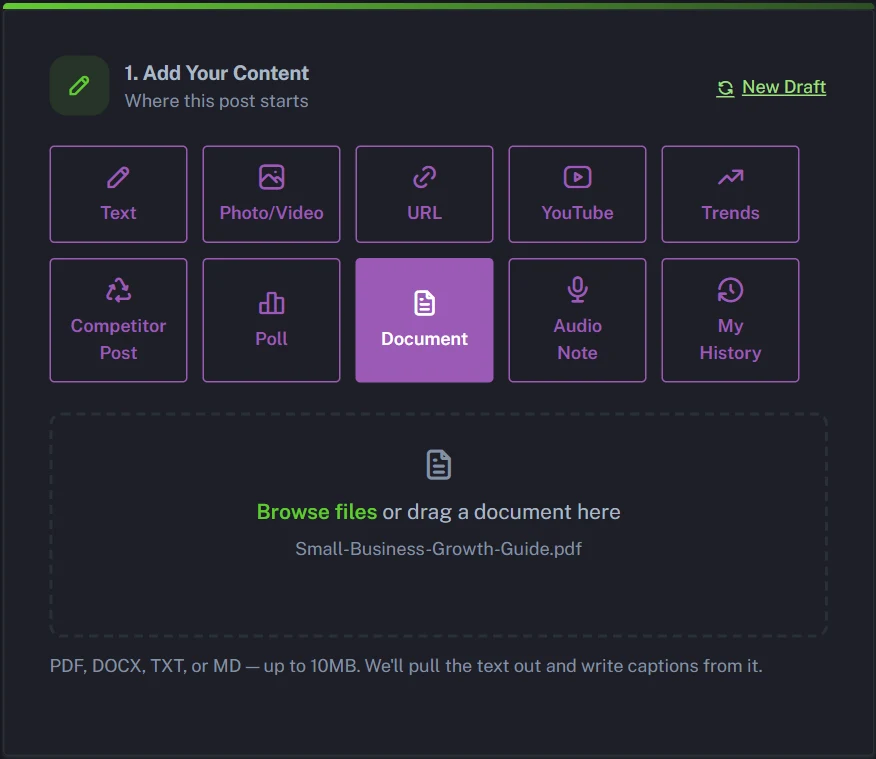
Say you run a small business consultancy and you've just made a free 8-page guide, Small-Business-Growth-Guide.pdf. It's genuinely useful, but almost nobody will open it from a link card. In PostAnything, you choose the Document tile in Step 1 and upload it.
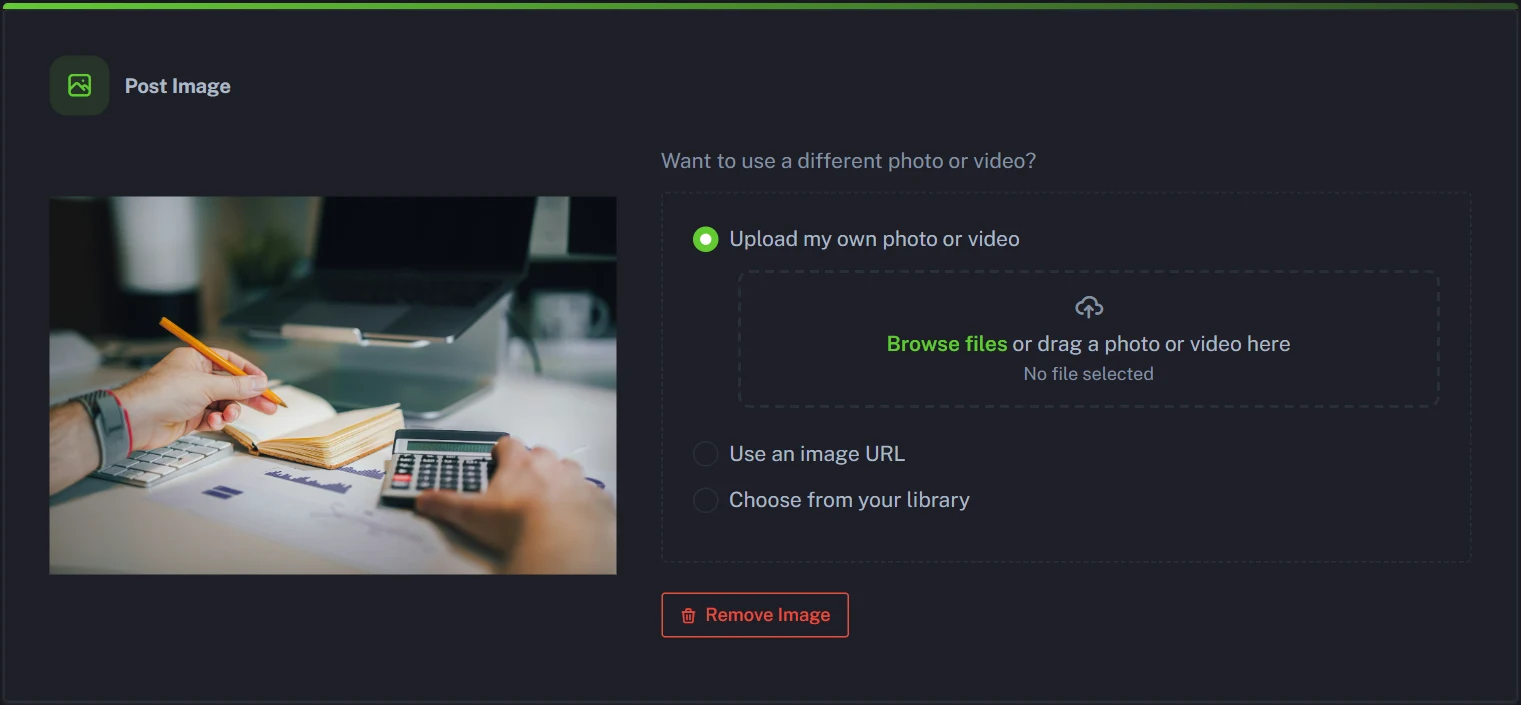
You click Generate, then upload a short video of you talking through the guide's three tips on the Add a Photo or Video card. A photo would bring in Instagram and Pinterest; the video brings in TikTok and YouTube as well (a post carries one photo or one video). In Step 2, each platform gets its own caption card:
The small businesses we work with that grow fastest aren't doing anything fancy. They do the basics, every week. We put those basics into a free 8-page guide. Three takeaways: check your numbers every month, follow up on every quote within two days, and ask every happy customer for a review. Full guide here: [link]
Want more customers this year without a bigger budget? 📈 We've made a free guide for small business owners, with the simple habits we see working again and again. Grab it below, or send us your questions 👇 [link]
XCheck your numbers monthly. Follow up on quotes within 2 days. Ask happy customers for reviews. 3 tips from our free small business growth guide 📈 [link]
Small habits, big difference 📈 Our free Small Business Growth Guide has 8 pages of practical tips you can start using this week. #SmallBusinessTips #SmallBusinessOwner #BusinessGrowth [link]
Small business growth guide: check your numbers every month, follow up on every quote within two days and ask every happy customer for a review. Our free 8-page guide covers the rest, with simple habits you can start this week. [link]
ThreadsHonest question: how many of your quotes did you follow up on last month? 😅 We wrote a free guide to growing a small business with simple habits. Tip one: follow up within two days. #SmallBusiness [link]
BlueskyOur free Small Business Growth Guide is out: 8 pages of simple habits that help small businesses win more work. Start here: check your numbers monthly and follow up on every quote. 📈 [link]
TikTok3 habits that help small businesses grow 📈 Check your numbers every month, follow up on quotes within two days, ask every happy customer for a review. The full guide is free. #SmallBusinessTips #BusinessGrowth #Entrepreneur #SmallBusinessOwner [link]
YouTube3 simple habits that help small businesses grow 📈 Get our free Small Business Growth Guide below. #Shorts #SmallBusiness [link]
Notice the links. If your PDF is hosted somewhere, put its link in Link to add to the post in Step 1, and PostAnything adds it to the end of every caption. On Instagram and TikTok it shows as plain text, so point people to your bio there too.
How to convert a PDF into social media posts with PostAnything
Here's the whole workflow, from sign-up to scheduled. It's the same whether you only want to convert a PDF to a LinkedIn post or send it to all nine platforms.
Once your accounts are connected, a PDF post needs just four steps from you, and PostAnything writes every caption in seconds.
The short version
- Open New Post and choose the Document tile.
- Upload your PDF (or a Word, text or Markdown file).
- Click Generate.
- Choose Post Now or a time, then click Schedule Post.
Everything else below is one-time setup or optional, and labelled that way.
Set up once
- One-time Click Start Free Trial on postanything.ai. You get 5 free posts, and each one publishes to every platform you connect.
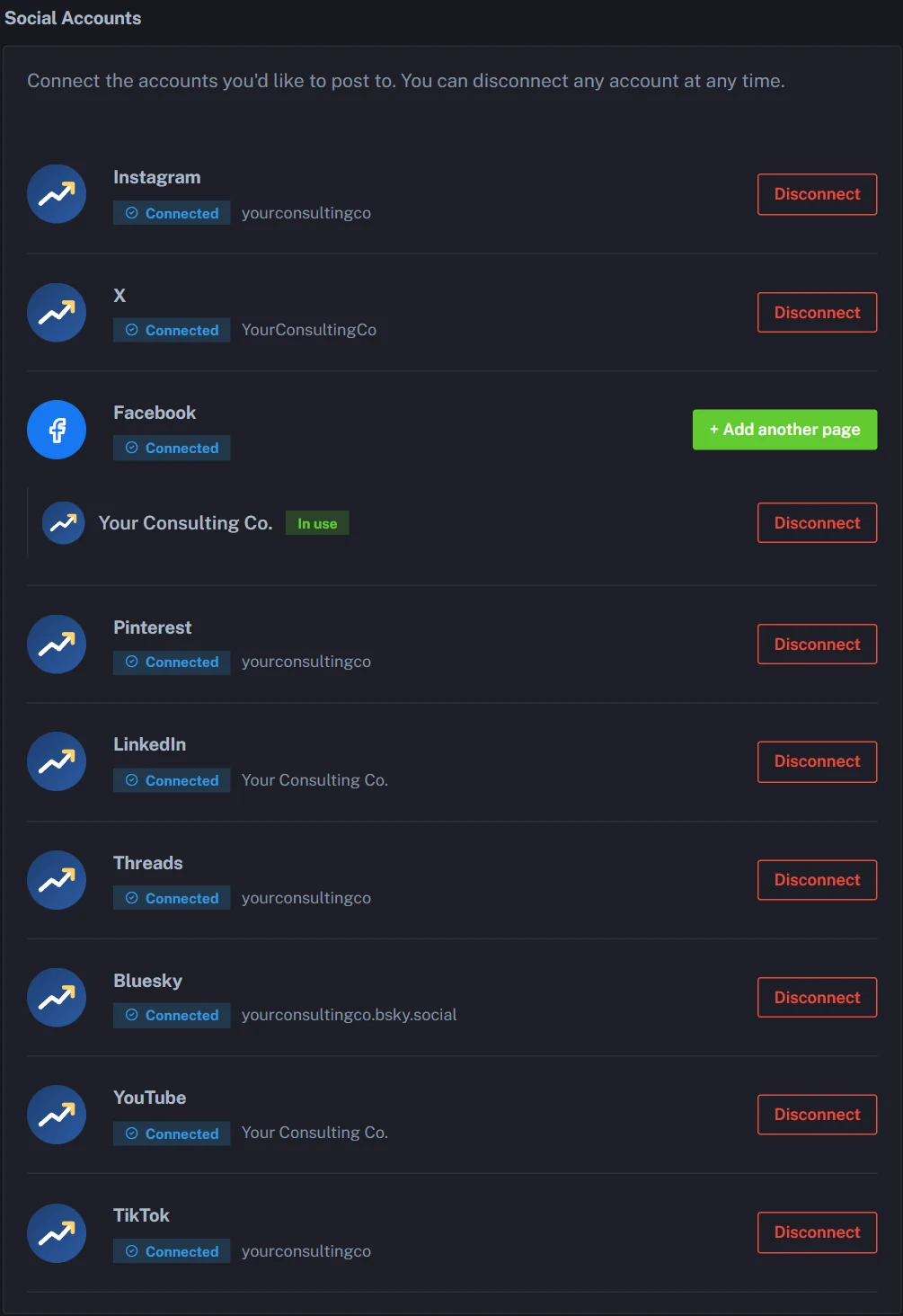
- One-time Open Connected Accounts in the sidebar and connect your platforms. Most take one click. For Facebook, pick the Pages you want, because PostAnything posts to Pages, not personal profiles. Bluesky needs an app password, and the Create an app password on Bluesky link shows you how.
- Optional Open Voice & Style in the sidebar. It's what makes the posts sound like you.
- Optional Choose Learn From Your Posts, paste examples into Custom Writing Samples, or use both.
- Optional Click Analyze, check the result under Your Learned Style, then click Save Changes.
Turn your PDF into posts
- Go to New Post and select the Document tile in Step 1: Add Your Content.
- Upload your PDF, or a Word document, text file or Markdown file. The Document tile accepts PDF, DOCX, TXT and MD files up to 10MB. If your file is bigger, compress it or paste its key points into the Text tile instead. Scanned PDFs that are just pictures of pages have no text to read, so paste their key points into the Text tile too.
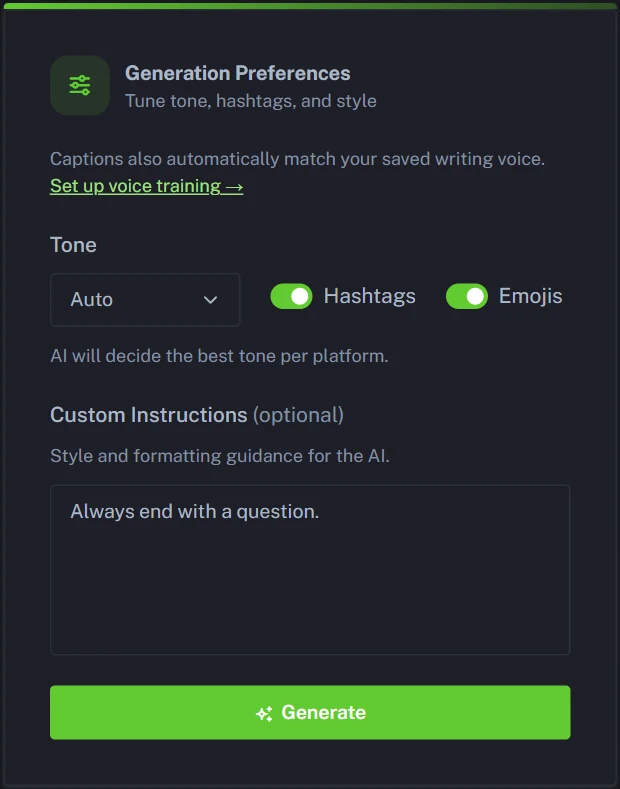
- Optional Set your Generation Preferences: choose a Tone (or leave it on Auto), switch Hashtags and Emojis on or off, and add any Custom Instructions, such as "Always end with a question."
- Click Generate.
- Optional Add a photo or video on the Add a Photo or Video card to bring in Instagram, Pinterest, TikTok or YouTube. Choose Upload a photo or video or Use an image URL. On the Pro plan (and in the free trial) you can also Choose from your library. PostAnything writes captions for the newly eligible platforms automatically. Skip this and the post goes out as text to Facebook, LinkedIn, X, Threads and Bluesky.
- Optional Review each caption card in Step 2: Review. Edit text directly, use the refresh icon to regenerate a single platform, or switch a platform off for this post.
- Optional Put the link to your full PDF in Link to add to the post in Step 1, and PostAnything adds it to the end of every caption. Skip this if the PDF isn't hosted anywhere; the posts work on their own.
- Optional Click Preview to see how the post will look.
- Choose Schedule for Later and pick a date and time, or choose Post Now, in Step 3: Schedule.
- Click Schedule Post.
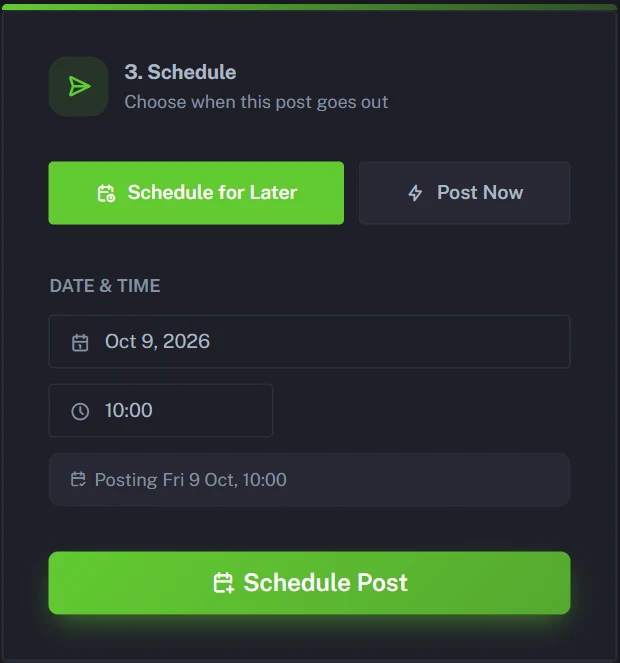
Your post then shows in Post History, marked "Processing" until each platform confirms it, and on your Calendar, where you can cancel it if plans change. For the bigger picture, see how PostAnything works from start to finish.
Which PostAnything plan fits turning PDFs into posts?
The Document tile is included on every plan, so most people only need Basic. Start with the free trial: 5 free posts, each one going out to all your connected platforms, with every feature included and no credit card. After that, Basic is $15 a month ($12 billed annually) for 30 posts a month, and a post still counts as one however many platforms it publishes to.
If you're turning out documents every week, or you want the media library for reusing photos, Pro gives you 300 posts a month for $29, with each multi-platform post counted once. You can compare everything on our PostAnything plans and pricing page.
The short version
If you need the PDF file itself on social media, Facebook Groups and LinkedIn document posts are your only real options. Everywhere else, it's a link or a set of images. If you want people to actually take in what's inside the PDF, turn it into native posts written for each platform.
We used to give each of our PDFs one "download our free guide" post and move on. When we started posting what was inside instead, the tips and findings themselves written for each platform, people replied to the posts and asked for the guide, rather than scrolling past the link.
That's the job PostAnything does from a single upload, all the way through to publishing, which makes it the AI content repurposing tool we wish we'd had for every report and guide that ended up buried in a link. Try it with 5 free posts, each one publishing to every platform you connect, and no credit card needed.
Start your free trial