PostAnything is an AI product post generator that starts from the page you've already written. Paste a product link and it reads the product's name, price and details, pulls in your product photos, and writes product social media posts for Facebook, Instagram, LinkedIn, Pinterest, X (formerly Twitter), Threads, Bluesky, TikTok and YouTube. You check them over, pick a time, and PostAnything publishes them for you.
It's built for the way small stores actually do ecommerce social media marketing: one person, a growing catalogue, and no time to write the same announcement nine times.
- Water-resistant waxed canvas
- Solid brass hardware
- Fits a 15" laptop
Rainy commute? This one's ready 🌧️ Water-resistant, solid brass and fits your 15" laptop. $68.
Meet the newest bag in the shop: the Waxed Canvas Tote. Water-resistant, with solid brass hardware. $68.
Waxed canvas tote with brass hardware. A water-resistant everyday bag. $68
New in: the Waxed Canvas Tote. Water-resistant, brass hardware. $68 →
Plus LinkedIn, Threads and Bluesky with the same photo. Add a product video for TikTok and YouTube.
How our AI product post generator turns a product page into posts
Most tools that promise to promote your products either design a graphic or push the same caption everywhere. PostAnything writes a separate post for each platform, using the details already on your page.
It reads your product page for you
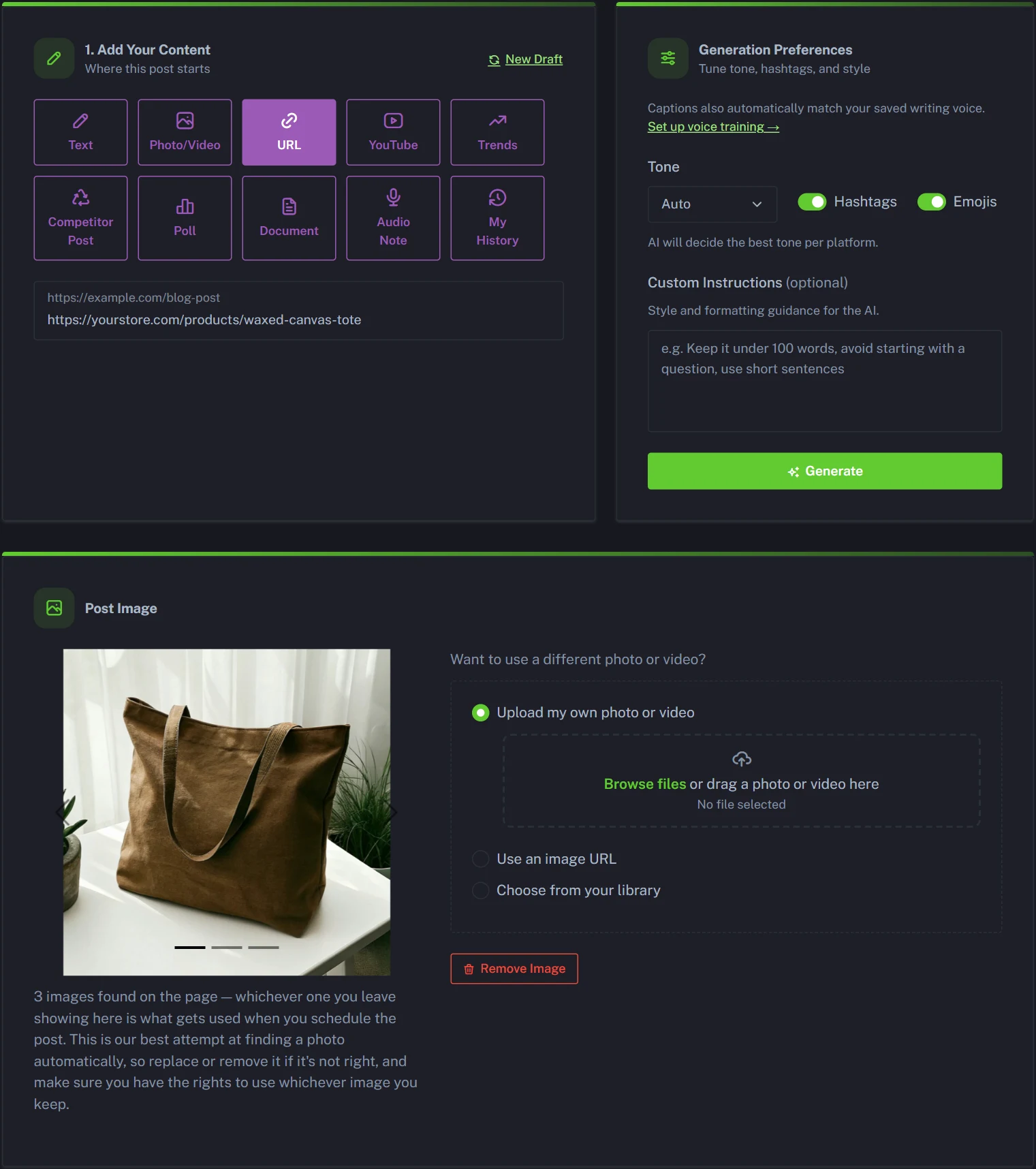
Choose the URL tile and paste your product link. PostAnything reads the page and summarises it, including the product name and description, and usually the price, so your captions use real details instead of vague hype. It works with Shopify and WooCommerce product pages and almost any other online store.
The exception is Etsy, which blocks automated reading. For an Etsy listing, upload your product photo in the Photo/Video tile, or type the key details into the Text tile.
Your real product photos, never AI-made ones
After you click Generate, the images found on your product page appear in a carousel in the Post Image card, and whichever one is showing is the one that gets posted. PostAnything doesn't generate AI images, so shoppers see your product exactly as it looks in your store.
You don't need to crop anything, either. Each photo is automatically resized for every platform when it publishes, so it fits each feed without you opening an editor.
Which platforms a product photo covers
A product photo is enough for seven platforms: Facebook, Instagram, LinkedIn, Pinterest, X, Threads and Bluesky. TikTok and YouTube need a video. If you have a product clip, swap the photo for it in the Post Image card after generating, using Upload my own photo or video. A post carries one photo or one video, so the clip replaces the photo. PostAnything then writes the TikTok and YouTube captions automatically, and Instagram and Pinterest still get the post. Here's more on posting one video to TikTok, Reels and Shorts.
Before and after: one product page, nine ready-to-post captions
Here's what that looks like with an example product page. The store and product are made up, but the steps are exactly what you'll see in the app.
The input: a product page at yourstore.com/products/waxed-canvas-tote for a Waxed Canvas Tote. It costs $68, is water-resistant, has solid brass hardware and fits a 15-inch laptop. We pasted the link into the URL tile and clicked Generate, then left the main product shot showing in the carousel.
The output: a caption card for each platform in Step 2, each written for that platform. The product photo covered seven platforms. To bring in TikTok and YouTube, we then swapped it for a short clip of the tote in the rain, using Upload my own photo or video in the Post Image card. Here's what all nine platforms got. PostAnything added the product link to the end of every caption, and made it the Pinterest pin's link too.
Rainy commute? This one's ready 🌧️ Our new Waxed Canvas Tote is water-resistant, finished in solid brass and fits your 15" laptop. $68. #ToteBag #EverydayCarry #NewArrivals yourstore.com/products/waxed-canvas-tote
Meet the newest bag in the shop: the Waxed Canvas Tote. It's water-resistant, built with solid brass hardware, and roomy enough for a 15-inch laptop plus everything else you carry. $68. Take a closer look: yourstore.com/products/waxed-canvas-tote
We've just added the Waxed Canvas Tote to the shop. It's made for the commute: water-resistant waxed canvas, solid brass hardware, and room for a 15-inch laptop alongside everything else you carry through the day. $68. yourstore.com/products/waxed-canvas-tote
Waxed canvas tote with brass hardware. A water-resistant everyday bag that fits a 15-inch laptop. $68. yourstore.com/products/waxed-canvas-tote
XNew in: the Waxed Canvas Tote. Water-resistant, brass hardware, fits a 15" laptop. $68 → yourstore.com/products/waxed-canvas-tote
ThreadsHonest question: does your work bag survive a rainy commute? 🌧️ Our new Waxed Canvas Tote does. Water-resistant, solid brass hardware, room for a 15" laptop. $68 → yourstore.com/products/waxed-canvas-tote
BlueskyNew in the shop: the Waxed Canvas Tote. Water-resistant waxed canvas, solid brass hardware and room for a 15" laptop, for $68. #EverydayCarry yourstore.com/products/waxed-canvas-tote
TikTokPOV: it starts pouring on the way to work and your laptop stays dry 🌧️💻 Our Waxed Canvas Tote is water-resistant, finished in solid brass and just $68. #ToteBag #EverydayCarry #RainyDay #SmallBusiness yourstore.com/products/waxed-canvas-tote
YouTubeRain test: does the Waxed Canvas Tote keep a 15" laptop dry? 🌧️ Water-resistant waxed canvas, solid brass hardware, $68. Find it in our shop. #Shorts #ToteBag #EverydayCarry yourstore.com/products/waxed-canvas-tote
How to create product social media posts from a product URL
Once your accounts are connected, a product post needs just three steps from you, and PostAnything writes every caption in seconds.
The short version
- Paste your product link into the URL tile. PostAnything adds it to your captions for you.
- Click Generate.
- Choose Post Now or a time, then click Schedule Post.
Everything else below is one-time setup or optional, and labelled that way.
Here's the full process, from sign-up to a scheduled post. For the bigger picture, see how PostAnything works.
Set up your accounts and voice
- One-time Click Start Free Trial on postanything.ai. You get 5 free posts, and each one publishes to every platform you connect.
- One-time Open Connected Accounts from the sidebar and connect your platforms. Most take a single sign-in. For Facebook, choose the Pages you post to (PostAnything posts to Pages, not personal profiles). For Bluesky, enter an app password, which you can create with the Create an app password on Bluesky link.
- Optional Open Voice & Style and add Learn From Your Posts, Custom Writing Samples or both.
- Optional Click Analyze, check the result under Your Learned Style, then click Save Changes.
Generate your product posts
- Open New Post from the sidebar and choose the URL tile.
- Paste your product page link. It's copied into Link to add to the post, so PostAnything adds it to the end of your captions.
- Optional Set your Tone, Hashtags and Emojis in Generation Preferences, and add any Custom Instructions.
- Click Generate.
- Optional In the Post Image card, scroll the carousel to the product photo you want to post. Skip this and the first photo is used.
- Optional Want the post on TikTok and YouTube too? Choose Upload my own photo or video in the same card and upload a product video. It replaces the photo, since a post carries one photo or one video.
Review and schedule
- Optional Check the product link at the end of each caption. On Instagram and TikTok it shows as plain text, since links there can't be clicked, so point people to your bio too. Pinterest also uses it as the pin's link.
- Optional Edit any caption directly. Click a card's refresh icon to rewrite just that platform, or use its switch to leave that platform out of this post.
- Optional Click Preview to see how the post will look.
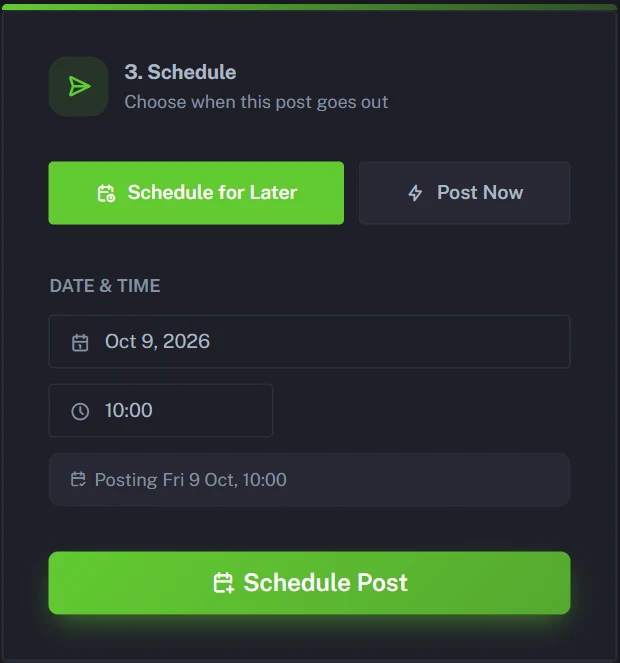
- Choose Schedule for Later and pick a date and time, or choose Post Now.
- Click Schedule Post.
Your post then appears in Post History, marked "Processing" until each platform confirms it. If you haven't connected any accounts yet, you can still generate and preview every caption. You just can't schedule until you connect.
Product launch social media posts from a single page
A launch usually needs more than one post. Here's a simple way to build a sequence around one product page, using features included in every plan:
- Before the page is live: use the Text tile to write a teaser, such as "Something rain-ready lands Friday", and schedule it with Schedule for Later.
- On launch day: paste the new product page into the URL tile and choose Post Now.
- A few days later: generate from the same page again with a different Tone, say Playful instead of Professional, for a fresh new product social media post.
On Pro, My History also lets you remix your launch post later and reuse its media, and Audio Note lets you turn a voice memo into a social media post when talking is quicker than typing. Every post in the sequence counts as 1 against your plan, however many platforms it goes to. They all sit on the Calendar, where you can open any post and Cancel Post if plans change.
A rhythm that suits most small stores: the teaser two or three days before launch, the launch post on the day, and a follow-up about four days later that leads with a different detail, such as the brass hardware instead of the rain-proofing. Put that angle in Custom Instructions ("Lead with the brass hardware") so the follow-up doesn't repeat the launch post. If the product sells well, a fourth post a couple of weeks on, like a "back in stock" note, keeps it in people's feeds.
That's four posts, each going out to every platform you've connected and counting as 1. On Basic, that leaves 26 of your 30 for the rest of the month.
A product caption generator that writes in your brand voice
A product caption generator is only useful if the captions sound like your shop. When every post reads like a generic AI listing, followers scroll straight past.
PostAnything handles brand voice for social media in two places. Voice & Style learns your tone, sentence style, emoji use and hashtag habits from your past posts or writing samples, then applies them to every caption. Custom Instructions set rules for how each post is written, like "Always mention free shipping" or "End with a question".
Each platform still gets its own treatment. Product Instagram captions get emojis and hashtags if you've switched them on, a product Facebook post gets fuller detail, and X gets the short version. If you'd rather choose the mood yourself, set Tone to anything from Casual to Persuasive, or leave it on Auto. You can see the rest of PostAnything's features on our homepage.
Social media for ecommerce, whatever your store runs on
Good social media for ecommerce comes down to a few basics on every post: a clear photo of the product, a reason to want it, the price, and a link straight to the page. PostAnything takes all four from your product page, and adds the link to every caption.
Shopify products to Instagram (and the other eight platforms)
Shopify already lets you share a product page from your admin or copy its link. That's handy for posting one link to one network. PostAnything takes the same product URL and writes a post for each platform you've connected, with no Shopify app to install. WooCommerce stores work exactly the same way.
If you sell through an Instagram shop, you can still add shopping tags. Instagram lets you tag products in existing posts, so publish with PostAnything first and add the tags in Instagram afterwards.
Got a store blog too? You can turn blog posts into social media posts the same way. Have product demos on YouTube? Paste the link and turn each YouTube video into social media posts for every platform.
Promoting a whole catalogue with Bulk Schedule
On Pro, Bulk Schedule lets you line up a month of product posts in one sitting. Choose Generate from Media, upload your product photos (or a whole folder), and AI writes a caption for each one. Pick your Platforms for this batch, review every row, then use Auto-fill blank times to spread the posts across the days you choose.
These captions come from your photos rather than your product pages, so add prices and links as you review each row.
Which plan fits a store posting products?
Most small stores are well served by Basic at $15 a month. It includes the URL tile and 30 posts a month, each one going out to every platform you've connected. That's enough for a product a day.
Choose Pro at $29 a month if you have a bigger catalogue or post more than once a day. You get 300 posts a month (still counted once per post, whichever platforms it reaches), plus Bulk Schedule, My History and a media library for reusing your product shots. Both plans cost less when billed annually. See all PostAnything plans and pricing.
Not sure yet? The free trial includes every feature, Pro ones too.
Start with your next product page
Your product pages already hold everything a good post needs: the photos, the price and the details. PostAnything is the AI social media scheduler that turns one link into a post for every platform you've connected, then publishes it on your schedule.
Try it with your next product. You get 5 free posts, each one going out to all your platforms, and no credit card is needed.
Start your free trial