In this guide, we'll show you how to schedule Instagram posts with Instagram's own free tool, where that tool stops, and how PostAnything turns one photo or video into a finished post for Instagram plus Facebook, LinkedIn, Pinterest, X (formerly Twitter), Threads, Bluesky, TikTok and YouTube. TikTok and YouTube join in whenever your post has a video.
They're back ☕ Our speckled mugs just restocked, every one handmade in small batches. #HandmadeCeramics #SlowLiving
Caption ready in seconds- Sat, 10:30 Behind the kiln
- Mon, 9:00 Glaze colour poll
yourstudio They're back ☕ Our speckled mugs just restocked…
Posted without opening the appWhat you can (and can't) automate on Instagram
Automating Instagram really means handing off three separate jobs:
- Writing: turning a photo, video or idea into a caption with hashtags.
- Scheduling: deciding when each post goes out.
- Publishing: actually posting it, without you opening the app.
Instagram's own scheduler covers the last two. You still face a blank caption box every time. PostAnything handles all three.
What you shouldn't automate is the social part: bots that like, follow, comment or send DMs for you. That's the behaviour that gets accounts flagged. Publishing through Instagram's official API, which is how PostAnything and every legitimate scheduler work, is a completely different thing.
Before you start: switch to a free professional account
To let any app publish for you, you'll need an Instagram professional account (Creator or Business). Meta's Instagram Platform only supports professional accounts, so every auto post Instagram app needs one. Instagram's built-in scheduler is less strict: any public account can use it.
Switching is free and takes about a minute in the Instagram app's settings.
Plenty of older guides say you also need a Facebook Page or Meta Business Suite. You don't. PostAnything connects by signing in with Instagram itself.
Can you schedule a post on Instagram without another app?
Yes. With a public account, you can schedule posts on Instagram for free from the mobile app. According to Instagram's Help Center, you can schedule up to 25 posts a day, up to 30 days ahead.
How to schedule Instagram posts in the app
- Open Instagram, tap Create (or swipe right from your feed) and choose Post or Reel.
- Pick your photo or video, tap Next, then write your caption.
- Tap More options, then turn on Schedule this post (or Schedule this reel).
- Choose a date and time, tap Done, then go back.
- Tap Schedule to confirm.
Where the built-in scheduler stops
- You still write every caption. Scheduling only moves the timing off your plate.
- It only posts to Instagram. Facebook, LinkedIn and the rest each need their own post.
- It's one post at a time, on your phone. There's no way to load up a month in one go.
If Instagram is your only channel and you post a few times a week, that may be all you need. If you're on several platforms, or the caption is the part you dread, read on.
How to automate Instagram posts with PostAnything, step by step
Here's the full flow, from sign-up to a scheduled post. You only do the setup once.
Once your accounts are connected, PostAnything writes every caption in seconds, and an Instagram post needs just four steps from you.
The short version
- Open New Post and pick the Photo/Video tile.
- Upload your photo or video. For a video, add a line in Description.
- Click Generate.
- Choose Schedule for Later, pick a date and time, and click Schedule Post.
Everything else below is one-time setup or optional, and labelled that way.
Set up once
- One-time Click Start Free Trial on postanything.ai. You get 5 free posts, and each one publishes to every platform you've connected. No credit card needed.
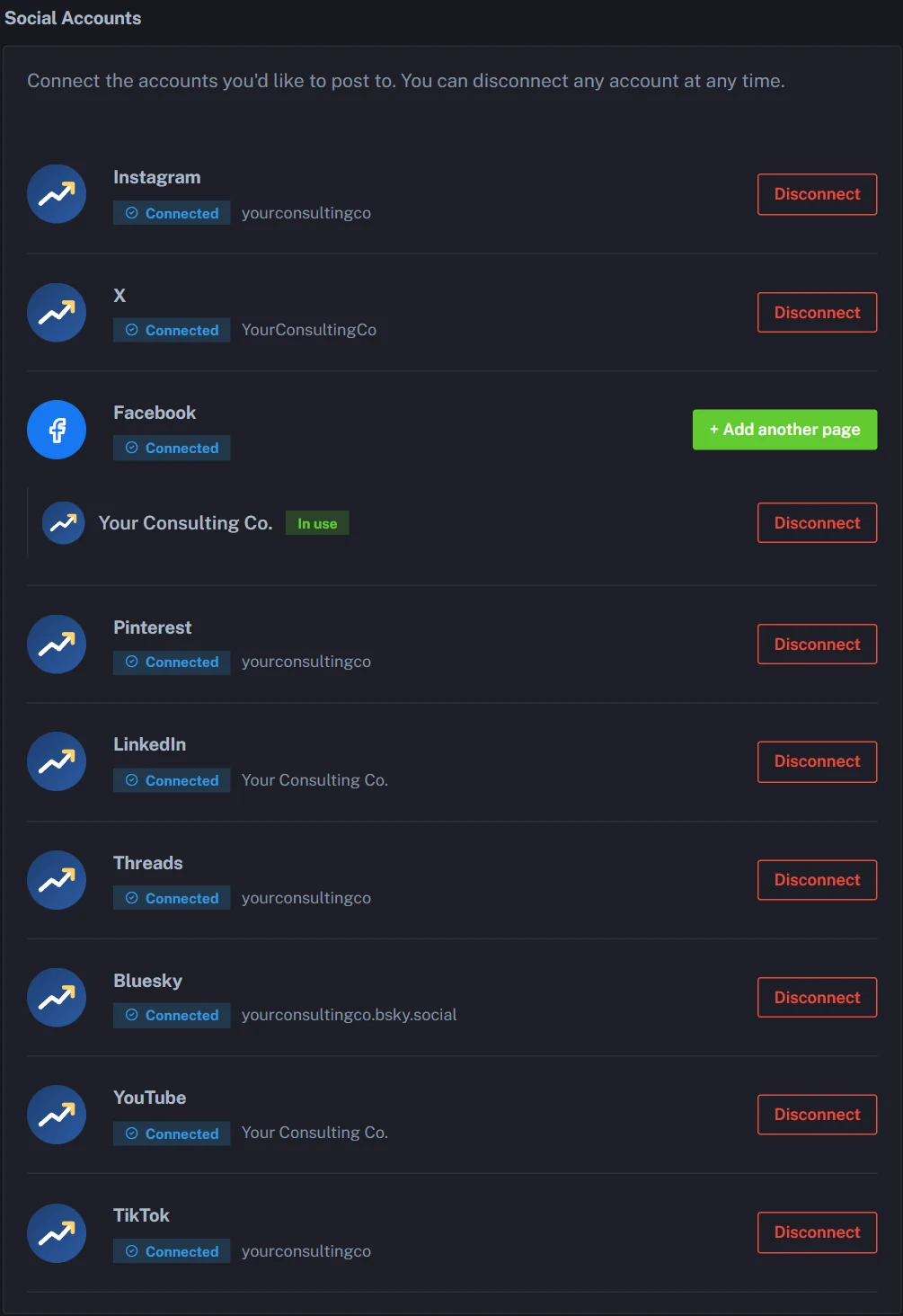
- One-time Open Connected Accounts in the sidebar and sign in to Instagram with your professional account.
- One-time Connect your other platforms the same way. Most take one click, and Bluesky asks for an app password rather than your real one.
- Optional Open Voice & Style, choose Learn From Your Posts, pick your Instagram account and click Analyze.
- Optional Check the result under Your Learned Style, edit anything that's off, then click Save Changes.
Create the post
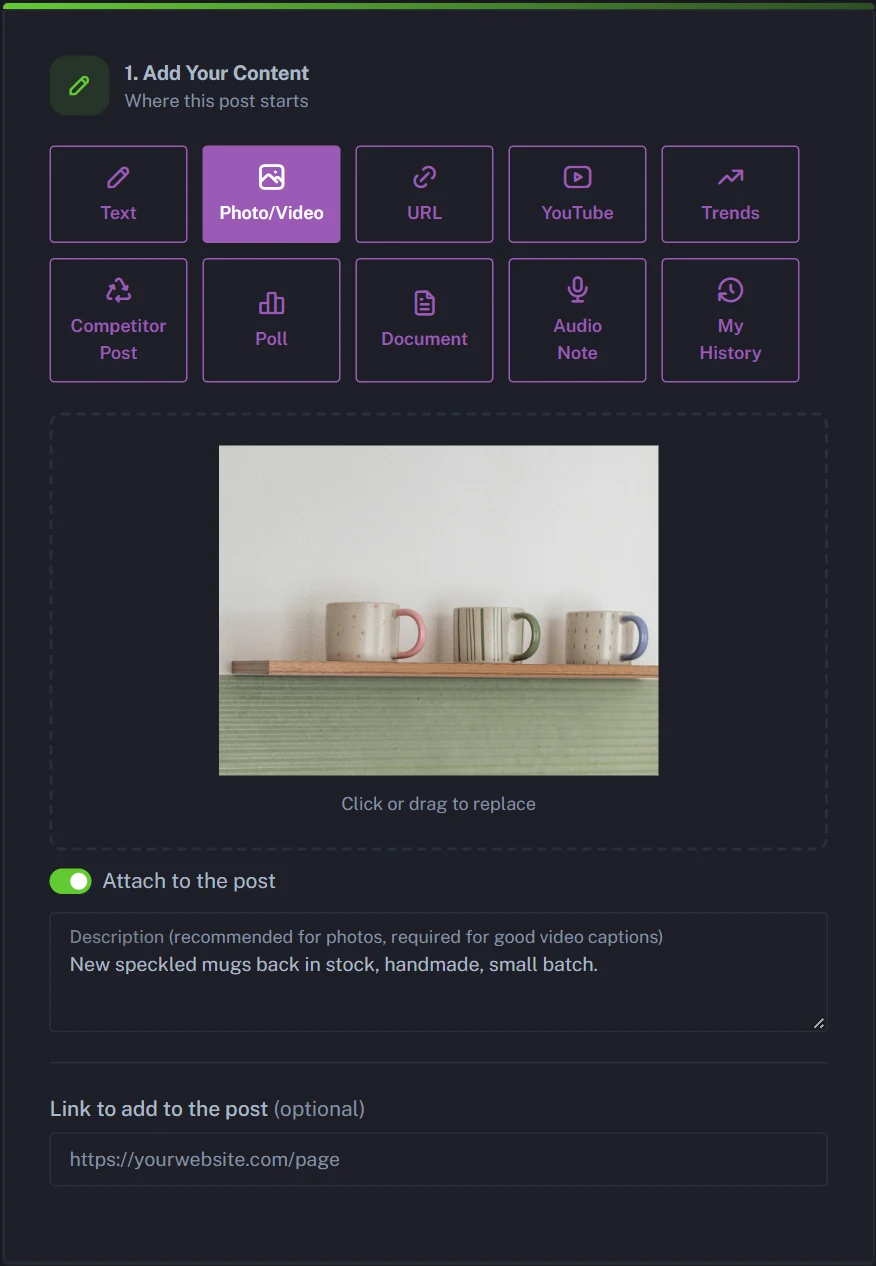
- Go to New Post and choose the Photo/Video tile in Step 1.
- Upload your photo or video, and leave Attach to the post switched on.
- Optional Add a short Description. Photos are analysed automatically, but videos aren't, so for a Reel your description is what the caption is built from. Skip it for a photo and the caption is built from what's in the picture.
- Optional In Generation Preferences, pick a Tone (or leave it on Auto), keep Hashtags and Emojis on if you like them, and add any Custom Instructions. Even switched on, hashtags and emojis are only used where they suit each platform.
- Click Generate.
Review and schedule
- Optional In Step 2, read the Instagram caption card. Edit it directly, or click the refresh icon to rewrite just that one.
- Optional Switch off any platform you'd like to leave out of this post, then check Preview.
- In Step 3, choose Schedule for Later and pick a date and time (or choose Post Now).
- Click Schedule Post.
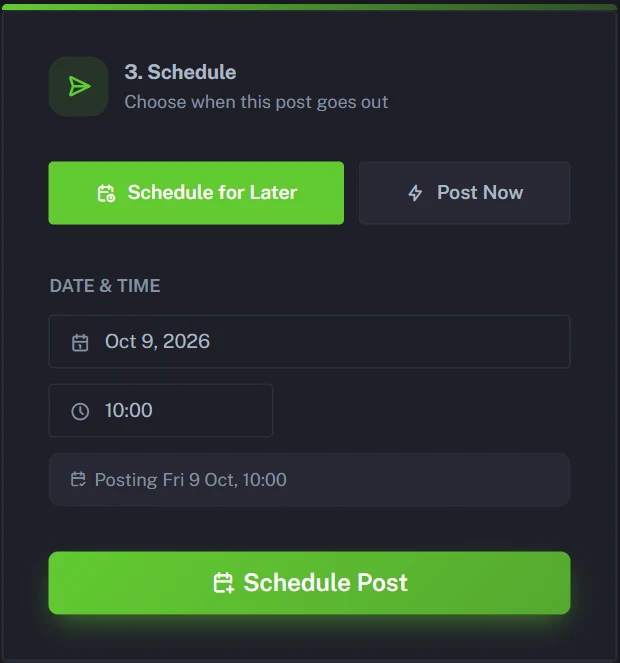
Your post now shows on the Calendar and in Post History. A photo goes out as a regular feed post. A video goes out as a Reel, which appears in your feed and the Reels tab. Your media is resized for each platform automatically, so there's no cropping or exporting to do.
Not starting from a photo? The URL tile can build a post straight from a product page or one of your blog articles. Instagram always needs an image: PostAnything attaches the page's own when it finds one, and if it doesn't, add one in the Add a Photo or Video card after you generate.
Before and after: one post, nine ready-to-post captions
Here's what that looks like with a single product photo. These captions are illustrative, and yours will follow your own brand voice.
The input: a photo of a shelf of handmade speckled mugs, uploaded to the Photo/Video tile with the description "New speckled mugs back in stock, handmade, small batch."
The output (Step 2 caption cards): the photo covered seven platforms. To bring in TikTok and YouTube, we then swapped it for a short vertical clip of the same shelf, using Upload my own photo or video in the Post Image card. Here's what all nine got.
They're back ☕ Our speckled mugs just restocked, every one handmade in small batches, so no two look alike. Grab yours before this batch is gone. #HandmadeCeramics #SlowLiving #CoffeeTime
Good news for everyone who missed out last time: our speckled mugs are back in stock! Each one is handmade in a small batch, so quantities are limited. Which colour are you going for?
Our speckled mugs are back in stock. Making them in small batches keeps every piece handmade and a little different, and we think that's worth the wait.
Handmade speckled mugs for slow mornings. Small-batch ceramics that make every coffee feel special. Save this for your kitchen refresh.
XOur speckled mugs are back in stock ☕ Handmade in small batches, so no two are alike. Get yours before they're gone.
ThreadsRestock day! Our speckled mugs are back, each one handmade in a small batch and a little different from the next. Which one would you pick? #ceramics
BlueskyThe speckled mugs are back in stock. Handmade, small batch, and every one a little different. #ceramics
TikTokPOV: the speckled mugs you missed are finally back ☕✨ Every one handmade in small batches, so no two match. #HandmadeCeramics #PotteryTok #SmallBusiness #CoffeeTok
YouTubeOur handmade speckled mugs are back in stock ☕ Small-batch ceramics, so no two look alike. Grab one before this batch sells out. #Shorts #HandmadeCeramics
With the clip attached, Instagram gets the post as a Reel instead of a feed post. Keep the photo and TikTok and YouTube simply sit that post out, while the other seven still get it. Our guide to uploading one video to multiple platforms at once covers the video route.
How to schedule Instagram posts a month at a time
Automating one post is handy. Automating a month is where the time really comes back. Bulk Schedule is part of the Pro plan, and it's included in the free trial so you can try it first.
- Open Bulk Schedule from the sidebar.
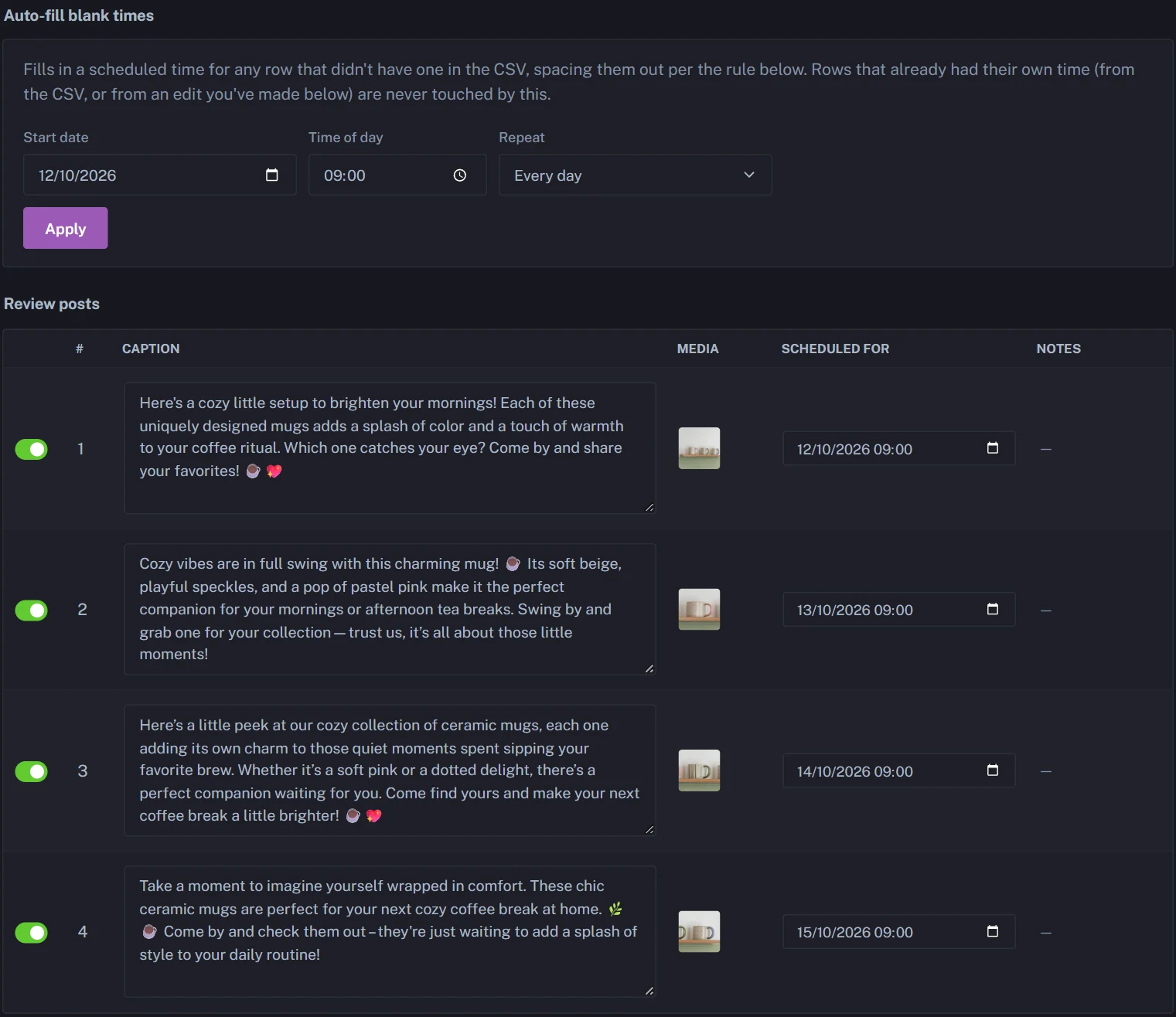
- Choose Generate from Media and upload your photos and videos, or a whole folder. AI writes a caption for each one.
- Pick your Platforms for this batch, with Instagram included.
- Optional Review and edit every row.
- Use Auto-fill blank times: choose a start date, then Every day or Specific weekdays.
- Schedule the batch.
Prefer a spreadsheet? Choose Import CSV, click Download CSV Template and add a caption on each row. The media and timing columns are optional, though Instagram will only pick up rows that include a photo or video.
There's no limit on how far ahead you can schedule. Just note that a post counts toward the month you schedule it in, so lining up December's posts in October uses October's allowance.
Instagram schedule tools compared: which route fits you?
| Feature | Instagram's built-in scheduler | DIY automation workflows | PostAnything |
|---|---|---|---|
| Writes the caption | No | Only if you add and prompt an AI step | Yes, a separate caption for each platform |
| Platforms | Instagram only | Whatever you connect yourself | All 9 |
| Setup | None | You build and maintain the workflow | Connect your accounts once |
| How far ahead | Up to 30 days | Depends on the tools | No set limit |
| A month at once | No | Possible, with extra setup | Yes, with Bulk Schedule (Pro) |
| Where you use it | Instagram mobile app | The workflow builder | Your web browser |
The built-in scheduler is free and fine for light, Instagram-only posting. DIY workflows are flexible if you enjoy building them. If you'd rather your posts write themselves and reach every platform without setup, that's the gap our AI social media scheduler fills.
Tips to keep automated posts sounding like you
- Train your voice on your best posts. Learn From Your Posts works from your recent captions, so connect the account that sounds most like you.
- Set house rules once. Custom Instructions such as "Always end with a question" apply every time you generate.
- Read before you schedule. A ten-second skim of the Instagram card catches the occasional caption that misses.
- Keep replies human. Let automation handle publishing, and spend the time you save answering comments yourself.
- Check what's working. Analytics shows likes, comments, reach and your top posts, so you know what to make more of.
In practice, the work shifts from writing to reading. Instead of drafting a caption for every app, you skim finished ones and fix the odd line, and with Bulk Schedule a whole month of posts becomes one sitting: upload the photos, check the rows, pick a start date.
Which PostAnything plan fits your Instagram schedule?
- Free trial: 5 free posts, and each one publishes to all your connected platforms. Every feature is included, Bulk Schedule too, with no credit card and no time limit.
- Basic, $15/mo ($12/mo billed annually): 30 posts a month, each going out to every platform you've connected. That's roughly one a day, created one at a time.
- Pro, $29/mo ($23/mo billed annually): 300 posts a month, each counted once however many platforms it reaches, plus Bulk Schedule, the media library and Audio Note.
If your goal is to stop thinking about Instagram for weeks at a time, Pro is the one, because Bulk Schedule is what turns posting into a once-a-month job. Compare everything on our plans and pricing page.
Start automating your Instagram posts today
Automating Instagram comes down to three jobs: writing, scheduling and publishing. Instagram's free scheduler covers the timing. PostAnything covers all three, and sends each post to the other 8 platforms while it's at it.
Try it with 5 free posts (each one publishes everywhere you're connected), no credit card required. Start your free trial and schedule your first Instagram post in a few minutes.
Start Free Trial