This guide covers how to schedule posts on LinkedIn for free, from your desktop or your phone, on a personal profile or a company page. Then we'll show you exactly how to see scheduled posts on LinkedIn, and how to edit, reschedule or delete one before it goes out.
If LinkedIn is just one of the places you post, the last part is for you. PostAnything writes your LinkedIn post plus separate versions for Facebook, Instagram, Pinterest, X (formerly Twitter), Threads, Bluesky, TikTok and YouTube from one source, then schedules them all together.
Most client projects go wrong in week one, not month six.
New on the blog: our 6-step client onboarding checklist.
Week one decides how a client project goes 📋
Client onboarding checklist: 6 steps to start every project right.
Client projects go sideways in week one. This fixes that.
honest question: do you have an onboarding checklist?
We wrote down the 6-step checklist we use with every client.
The 6 things we do before every new client project ✅
Our client onboarding checklist in under a minute.
Can you schedule posts on LinkedIn?
Yes. LinkedIn has a free, built-in scheduler on personal profiles and company pages, so you can schedule LinkedIn posts on LinkedIn itself without paying for a tool. You write the post as usual, click a clock icon instead of Post, and pick a date and time.
What you can and can't schedule
- Personal profile: anywhere from 10 minutes to 3 months ahead. Events and job posts can't be scheduled.
- Company page: from 1 hour to 3 months ahead, and only if you're a super admin or content admin. Events, multiple-photo posts, reshares, polls, jobs and service posts can't be scheduled on a Page.
LinkedIn's help articles on scheduling posts and scheduled posts for Pages have the full details.
How to schedule a post on LinkedIn from your desktop
On LinkedIn, schedule posts from the same Start a post box you always use. To schedule a LinkedIn post, you write it as usual and pick a time instead of clicking Post.
On your personal profile
- Click Start a post at the top of your LinkedIn homepage.
- Write your post and add any image, video or document.
- Click the Clock icon in the lower-right corner, next to Post.
- Pick a Date and Time on the Schedule post tab. Times use your device's time zone, so adjust if your audience is somewhere else.
- Click Confirm, check the "Posting at" time under your post (Edit changes it), then click Schedule.
How to schedule posts on a LinkedIn company page
Business pages and company pages are both "Pages" to LinkedIn, so these steps are also how to schedule a post on a LinkedIn business page:
- Open your Page's admin view.
- Click Start a post.
- Click the clock icon in the lower right to open Schedule post.
- Pick a date and time at least an hour away. You can type an exact time instead of using the 30-minute options.
- Click Confirm, finish your post and click Schedule.
How to schedule LinkedIn posts from your phone
In the LinkedIn app, tap Post, write your post, then tap the clock icon in the upper-right corner. Choose a date and time, tap Next, then tap Schedule. For a company page, open the Page's admin view in the app first.
How to see scheduled posts on LinkedIn
This is the part that trips most people up: where to see scheduled posts on LinkedIn. Your LinkedIn scheduled posts sit in a list inside the post composer, so you open a new post to find your old ones. Here's how to view scheduled posts on LinkedIn on each device:
- Desktop: click Start a post, click the Clock icon, then open the Scheduled tab next to Schedule post. It shows how many are waiting, such as Scheduled (2). Right after you schedule a post, LinkedIn also shows a View scheduled posts link.
- Phone: tap Post, tap the clock icon, then tap View all.
- Company page: do the same from the Page's admin view. Your profile and each Page have their own list, so posts scheduled as your Page won't appear when you open the composer as yourself.
That's how to see your scheduled posts on LinkedIn, and the same list is where you manage them.
How to edit scheduled posts on LinkedIn (and reschedule or delete them)
Open the Scheduled tab, then click the More icon (three dots) on the post:
- Post now publishes it straight away.
- Modify schedule changes the date and time. Pick a new one and confirm it.
- Edit post changes the text or media.
- Delete post removes it before it publishes. LinkedIn asks you to confirm with Delete Post, and it can't be undone.
Your profile and your Pages get the same four options.
Where LinkedIn's free scheduler stops
For one post on one account, LinkedIn's scheduler does the job. It pinches when LinkedIn is one channel among several:
- One post at a time. There's no bulk option.
- LinkedIn only. The same idea still has to be rewritten and scheduled again for Facebook, X, Threads and the rest.
- Three months ahead, tops.
- A list, not a calendar, with your profile and Page queues kept apart.
- You still write everything. The scheduler saves you a reminder, not the writing.
If you're weighing up dedicated scheduling tools, our comparison of Buffer alternatives covers what each one costs to reach all 9 platforms.
How to schedule LinkedIn posts alongside your other platforms with PostAnything
PostAnything is an AI social media scheduler built for that situation. Give it one source, such as a blog post, a PDF or a rough idea, and it writes a separate caption for LinkedIn and each of your other platforms, then schedules them together. LinkedIn gets a professional tone with very few hashtags; Instagram and TikTok get a more casual, hashtag-friendly style.
Once your accounts are connected, PostAnything writes every caption in seconds, and a scheduled LinkedIn post takes three steps from you.
The short version
- Open New Post, pick the URL tile and paste your article's link (or use Document or Text).
- Click Generate.
- Choose Schedule for Later, pick a date and time, and click Schedule Post.
Everything else below is one-time setup or optional, and labelled that way.
Connect your LinkedIn profile or company page
- One-time Click Start Free Trial on postanything.ai. You get 5 free posts, and each one publishes to every platform you connect.
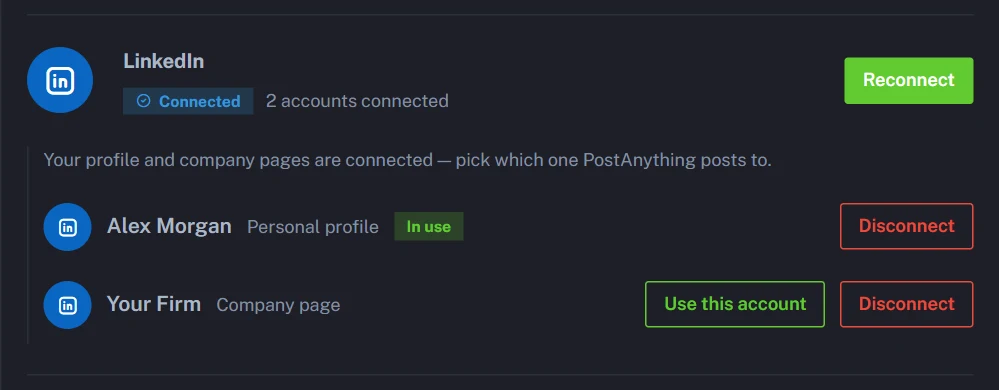
- One-time Open Connected Accounts in the sidebar and connect LinkedIn. Your profile and every company page you manage appear, labelled "Personal profile" or "Company page".
- Optional Click Use this account on the one you want to post to. Your profile is used by default, so skip this to post as yourself.
- One-time Connect your other platforms the same way.
Each brand posts to one LinkedIn account at a time, so to post as yourself and as your company, set them up as two brands (extra brands are an add-on on paid plans).
From one source to a scheduled LinkedIn post
- Optional Train your voice. Open Voice & Style, paste a few LinkedIn posts you've written into Custom Writing Samples, click Analyze, check Your Learned Style, then click Save Changes.
- Add your source. Go to New Post and pick a tile in Step 1: URL for a published article, Document to turn a PDF or report into social posts, or Text for a rough idea. LinkedIn needs no image or video, so any source works.
- Optional Check the link. The URL tile fills in Link to add to the post for you, and that link goes at the end of every platform's caption. On other tiles, add one there yourself if you want it.
- Generate. Leave Tone on Auto (or pick Professional), then click Generate.
- Optional Add media to reach more platforms. Instagram and Pinterest need an image or video, and TikTok and YouTube need a video. Without the right media, those platforms are left out of this post.
- Optional Review. In Step 2, edit the LinkedIn caption directly, use the refresh icon to rewrite it, or switch off any platform you'd rather skip. Click Preview to see how the post will look.
- Schedule. In Step 3, choose Schedule for Later, pick the date and time, and click Schedule Post. There's no three-month limit here.
Prefer talking to typing? On Pro (and in the free trial), Audio Note lets you turn a voice memo into a social media post.
Example: one blog post in, nine platform posts out
Say you've just published an article and want it on LinkedIn on Tuesday morning. Paste the link into the URL tile:
yourfirm.com/blog/client-onboarding-checklist
PostAnything reads the article, shows the images it found in a carousel (the one showing is used), and fills in the link field. It's the same flow behind our guide to turning a blog post into social media posts.
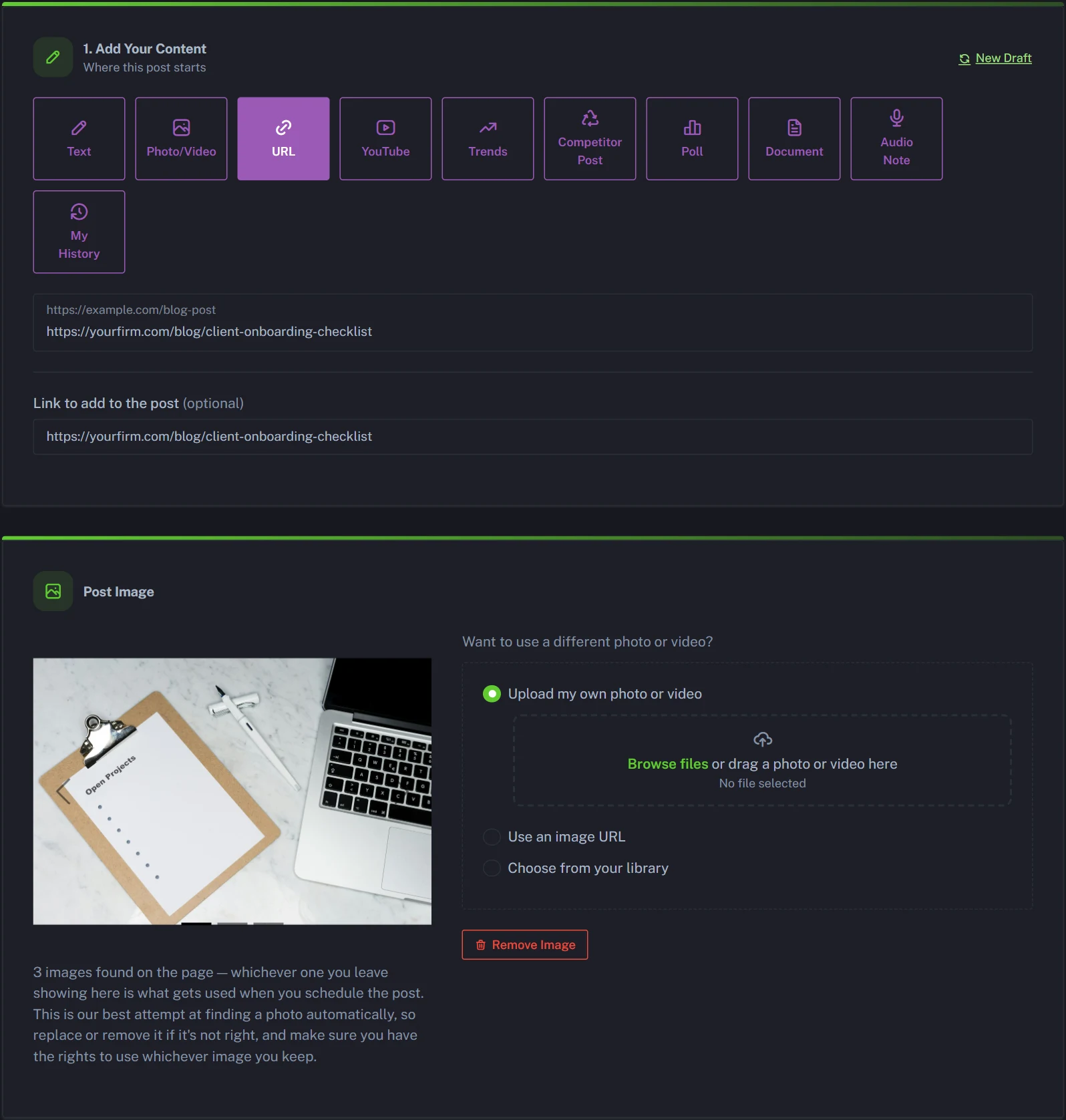
After Generate, Step 2 shows a card for each platform. The article's photo covers seven of them; to bring in TikTok and YouTube too, we swapped it for a short clip of the checklist using Upload my own photo or video in the Post Image card. All nine might read like this:
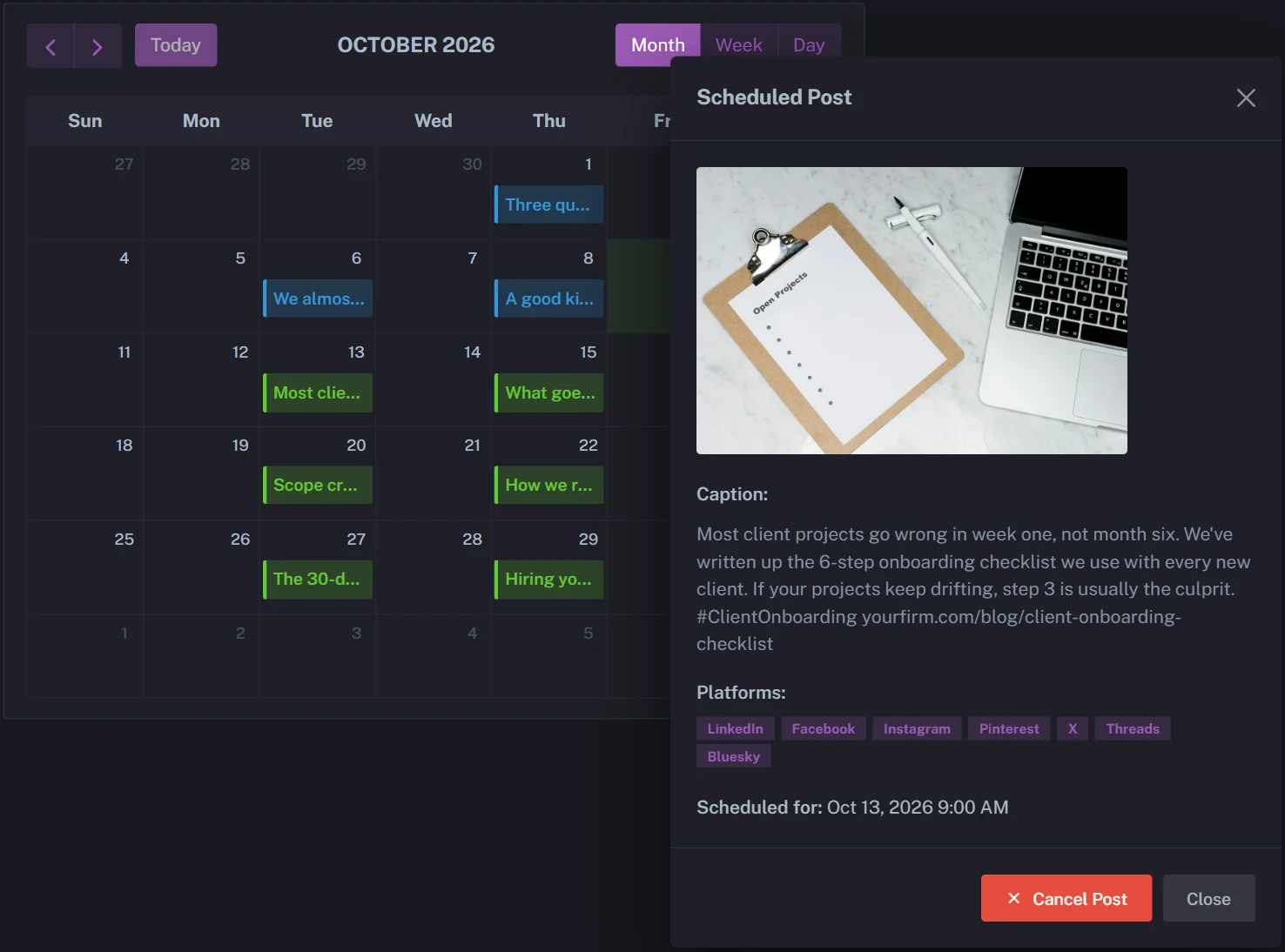
Most client projects go wrong in week one, not month six. We've written up the 6-step onboarding checklist we use with every new client. If your projects keep drifting, step 3 is usually the culprit. #ClientOnboarding yourfirm.com/blog/client-onboarding-checklist
New on the blog: our 6-step client onboarding checklist. Save it for your next new client, and tell us which step you skip most often 👇 yourfirm.com/blog/client-onboarding-checklist
Week one decides how a client project goes 📋 Our 6-step onboarding checklist covers everything from the welcome pack to the 30-day check-in. Save this for your next new client. #ClientOnboarding #SmallBusinessTips #AgencyLife yourfirm.com/blog/client-onboarding-checklist
Client onboarding checklist: 6 steps to start every new client project right, from the kickoff call to a signed-off scope. yourfirm.com/blog/client-onboarding-checklist
XClient projects go sideways in week one. Our 6-step onboarding checklist fixes that. yourfirm.com/blog/client-onboarding-checklist
Threadshonest question: do you have an onboarding checklist for new clients, or do you wing it? we finally wrote ours down. yourfirm.com/blog/client-onboarding-checklist
BlueskyWe wrote down the 6-step checklist we use to onboard every new client. Step 3 is the one most teams skip. #smallbusiness yourfirm.com/blog/client-onboarding-checklist
TikTokThe 6 things we do before every new client project starts ✅ Number 3 saves us weeks. #ClientOnboarding #AgencyTips #SmallBusinessTok yourfirm.com/blog/client-onboarding-checklist
YouTubeOur 6-step client onboarding checklist in under a minute. Steal it for your next new client. #Shorts #ClientOnboarding yourfirm.com/blog/client-onboarding-checklist
Finding and changing your scheduled posts in PostAnything
Every scheduled post appears on the Calendar and in Post History. Scheduled posts can't be edited, only cancelled, so to change one:
- Copy anything you want to keep from the post in Post History, because cancelled posts disappear from the list.
- Cancel it in Post History, or click it on the Calendar and choose Cancel Post.
- Create it again in New Post and schedule it.
The new version counts as a fresh post on your plan (still just 1, however many platforms it reaches), and cancelling doesn't give the old one back to your allowance.
Scheduling a month of LinkedIn posts at once
On the Pro plan, Bulk Schedule lines up a month of posts in one sitting. Use Generate from Media to get a caption for each photo or video, or Import CSV with your own captions (these go out exactly as written, so put any links in the caption). Tick LinkedIn under Platforms for this batch, review each row, then use Auto-fill blank times with Specific weekdays, say every Tuesday and Thursday. Pro includes 300 posts a month, each published to all the platforms you've connected, and the free trial includes Bulk Schedule too.
LinkedIn's scheduler or PostAnything: which should you use?
Stick with LinkedIn's free scheduler if LinkedIn is your only channel and you're happy writing each post yourself.
PostAnything makes more sense when the same idea needs to reach LinkedIn and your other platforms. For most LinkedIn-first professionals, Basic fits: $15 a month for 30 posts, and every one of them goes out to all your connected platforms. Pro, at $29 a month, adds Bulk Schedule and Audio Note. Compare everything on our plans and pricing page, and if Instagram is in your mix, see our sister guide on how to automate Instagram posts.
The short version: LinkedIn's scheduler handles the timing, but not the writing or the other eight platforms. Try PostAnything with 5 free posts (each one goes to all your platforms), no credit card needed.
Start Free Trial